

Issue State Mappings
Issue States lets you map the raw issue states from your connected trackers to Waydev's standard workflow stages. This ensures that ticket data is interpreted consistently across reports, regardless of how individual teams name their statuses in Jira, Azure Boards, or other issue tracking tools. It is accessible under Settings in the left sidebar.
Overview
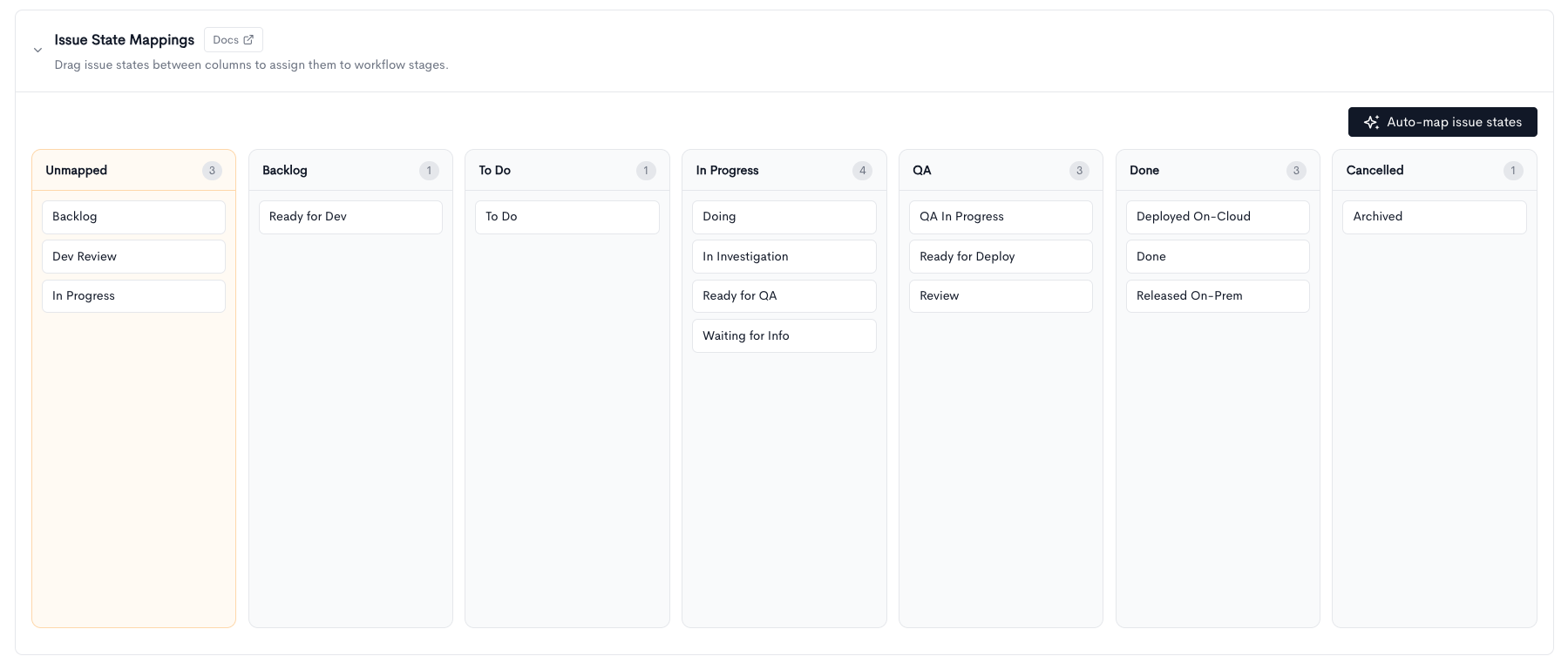
The page displays a board with one column for each standard workflow stage: Unmapped, Backlog, To Do, In Progress, QA, Done, and Cancelled. Each column shows a count of the states currently assigned to it.
Raw issue states pulled from your connected integrations appear as cards within the columns. States that have not yet been assigned to a stage appear in the Unmapped column, which is highlighted in orange to indicate they need attention. All columns show a "Drop states here" placeholder when empty.
Mapping issue states
To map a state, drag its card from the Unmapped column and drop it into the appropriate stage column. You can also move states between columns at any time to reassign them.
For example, a state called "Doing" from one tracker and "In Progress" from another can both be placed in the In Progress column so that reports reflect a consistent view of work in flight across your organization.
States that remain in the Unmapped column will not be included in workflow-based calculations until they are assigned to a stage. Mappings are applied as soon as a card is dropped into a column — there is no separate save step.
Auto-map issue states
You can also let Waydev Agent map the states for you. Select Auto-map issue states and the model reads each unmapped state name and places it in the workflow stage that matches that work: Backlog, To Do, In Progress, QA, Done, or Cancelled. A name such as "Ready for Dev" lands in Backlog, "Ready for QA" in In Progress, and "Ready for Deploy" in QA. A name that says the work is released or deployed, including "Released On-Prem" or "Deployed On-Cloud", lands in Done.
Auto-map only looks at states that are still in the Unmapped column. States you have already placed stay where they are. If a card lands in the wrong column, drag it back to Unmapped and run Auto-map again, or drag it straight into the column you want. The mapping is saved as soon as the card is in a column. States left in Unmapped are not included in workflow-based calculations until they are assigned.
Updated 15 days ago