

Planning
The Resource Allocation report helps you review allocation metrics, break down work by allocation buckets, and manage category settings. It is accessible under Planning in the left sidebar and is organized into two tabs: Breakdown and Settings.
Breakdown tab
The top of the page displays four summary metrics:
- Total Issues - The total number of issues in the selected period.
- Total effort - The total FTE effort across all issues.
- FTE per issue - The average FTE effort per issue.
- Contributors - The number of contributors with recorded activity.
The view can be toggled between Investment View and Category View using the buttons in the top-right corner. The unit can be switched between FTE and percentage using the View selector.
Investment View
The Investment View displays a stacked bar chart — FTE by Issue Categories — showing how effort is distributed across issue categories over time. Categories include Bug, Epic, Story, Task, and Uncategorized. The chart can be toggled to a Stacked Bar view.
Below the chart, a By category table breaks down effort per category with monthly columns, showing the FTE value per category per period along with a trend sparkline.
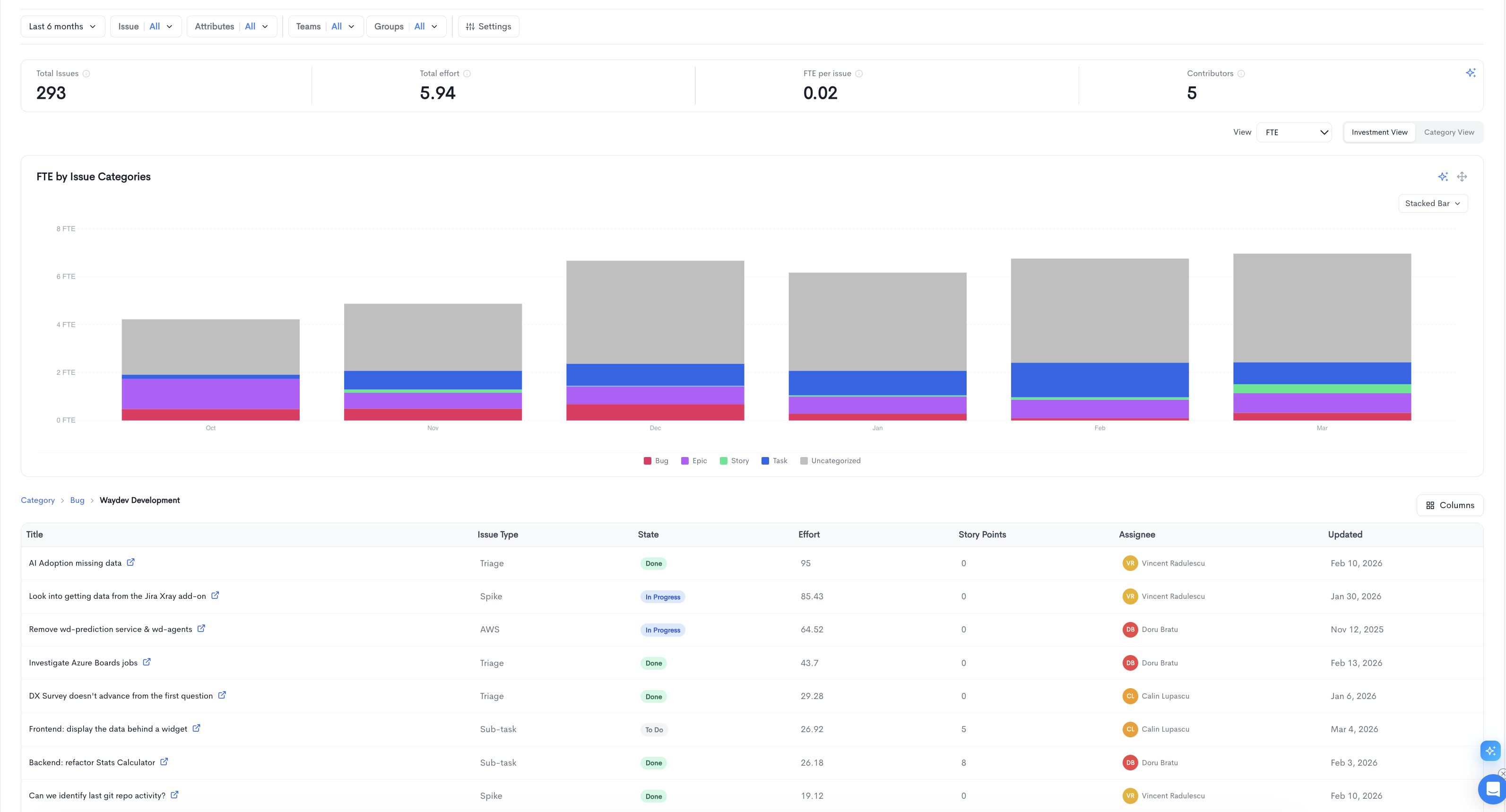
Clicking on a category in the table opens a drilldown showing a list of projects within that category. The breadcrumb at the top updates to reflect the current path (e.g. Category > Bug). The project-level table includes the following columns:
-
Name - The name of the project.
-
FTE - The FTE effort shown as a value and progress bar.
-
Est. Cost - The estimated cost for the project.
-
Issues - The number of issues in the project.
-
Story Points - The total story points for the project.
-
Contributors - The avatars of contributors involved.
-
Last Activity - The date of the most recent activity.

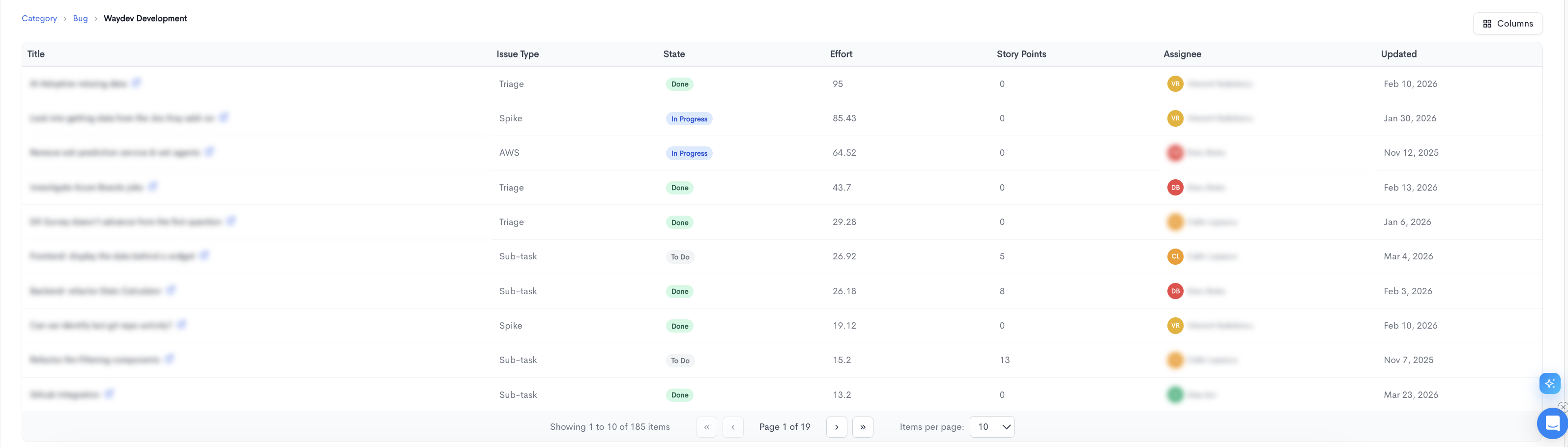
Clicking further into a project opens a detailed issue-level table. The breadcrumb updates to show the full path (e.g. Category > Bug > Waydev Development). The issue-level table includes the following columns:
-
Title - The issue title, linked to the source provider.
-
Issue Type - The type of issue (e.g. Triage, Spike, Sub-task, AWS).
-
State - The current state of the issue (e.g. Done, In Progress, To Do).
-
Effort - The effort value for the issue.
-
Story Points - The story points assigned to the issue.
-
Assignee - The developer assigned to the issue.
-
Updated - The date the issue was last updated.
Category View
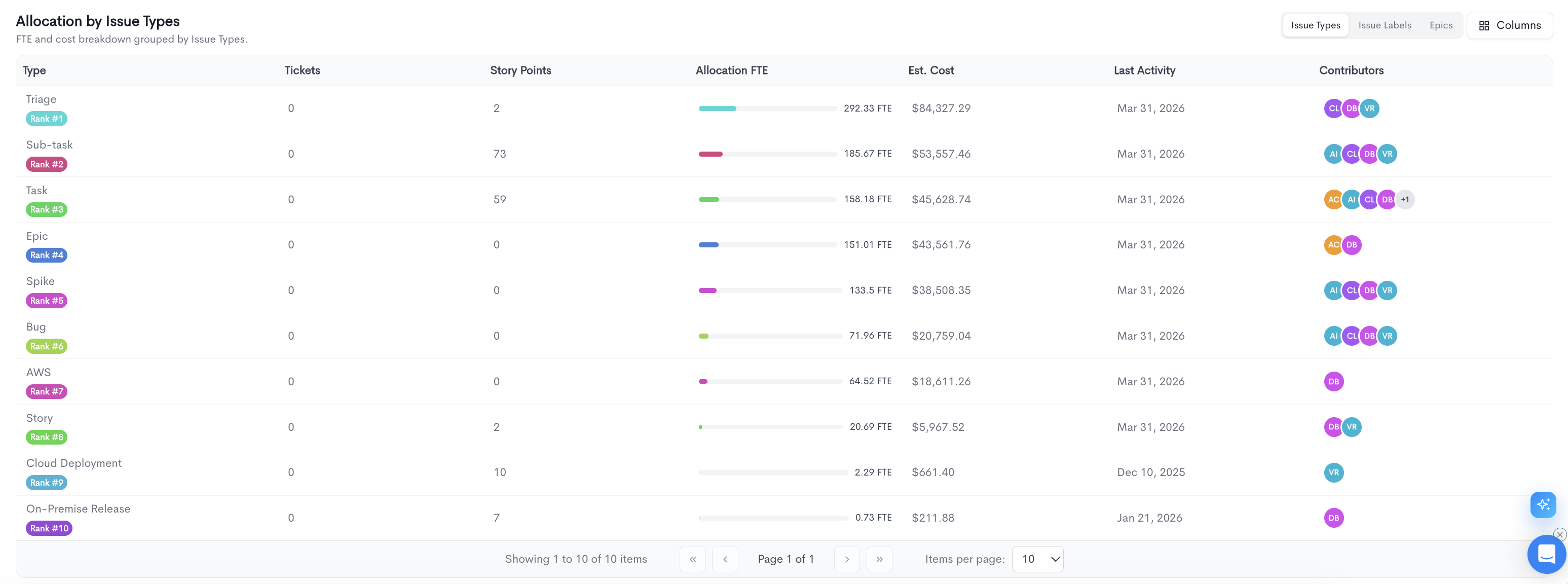
The Category View displays allocation data in a table grouped by a selected dimension. The table can be grouped using three toggle buttons in the top-right corner of the table:
- Issue Types - Groups allocation data by issue type (e.g. Triage, Sub-task, Task, Epic, Spike, Bug, Story).
- Issue Labels - Groups allocation data by the labels assigned to issues.
- Epics - Groups allocation data by epic.
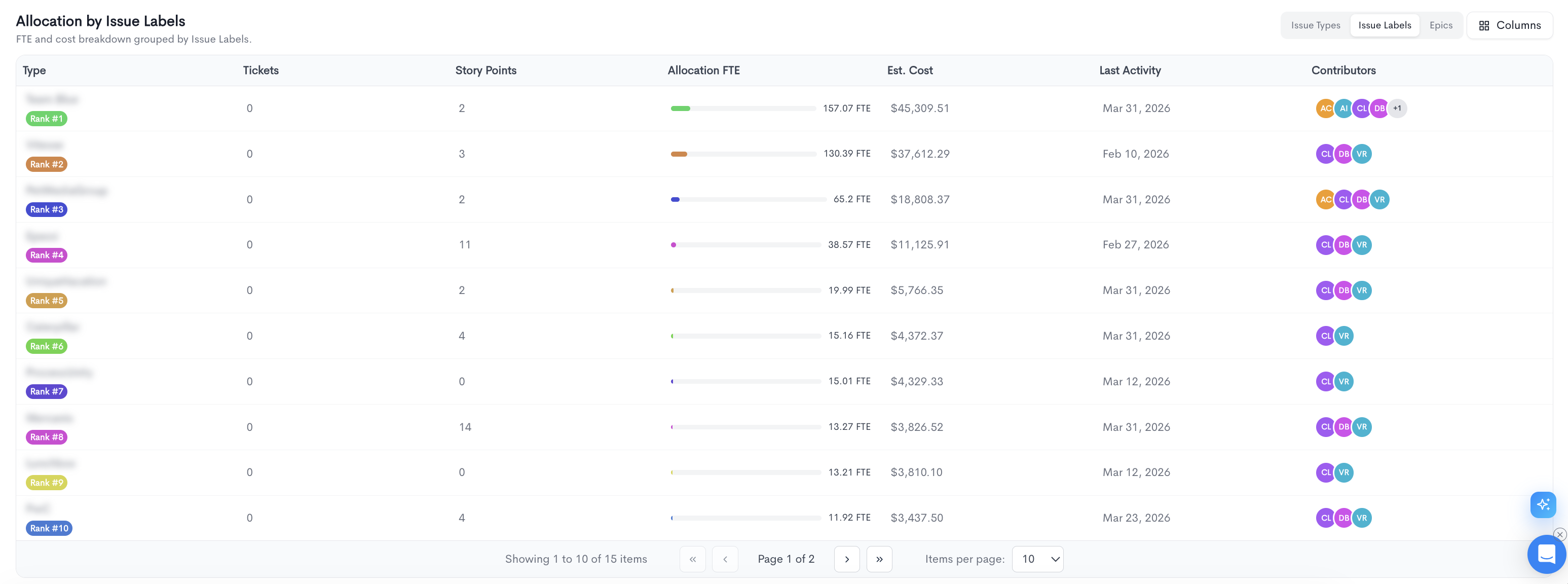
Regardless of the grouping selected, the table displays the following columns:
- Type - The name and rank of the issue type, label, or epic.
- Tickets - The number of tickets associated with the entry.
- Story Points - The total story points for the entry.
- Allocation FTE - The FTE effort shown as a value and progress bar.
- Est. Cost - The estimated cost for the entry.
- Last Activity - The date of the most recent activity.
- Contributors - The avatars of contributors involved.
Allocation by Issue Types
When the Issue Types grouping is selected, the table lists all issue types ranked by allocation. Examples of issue types include Triage, Sub-task, Task, Epic, Spike, Bug, AWS, Story, Cloud Deployment, and On-Premise Release.
Clicking on an issue type opens a drilldown showing a list of projects within that type, with the following columns:
- Name - The name of the project.
- FTE - The FTE effort shown as a value and progress bar.
- Est. Cost - The estimated cost for the project.
- Issues - The number of issues in the project.
- Story Points - The total story points for the project.
- Contributors - The avatars of contributors involved.
- Last Activity - The date of the most recent activity.
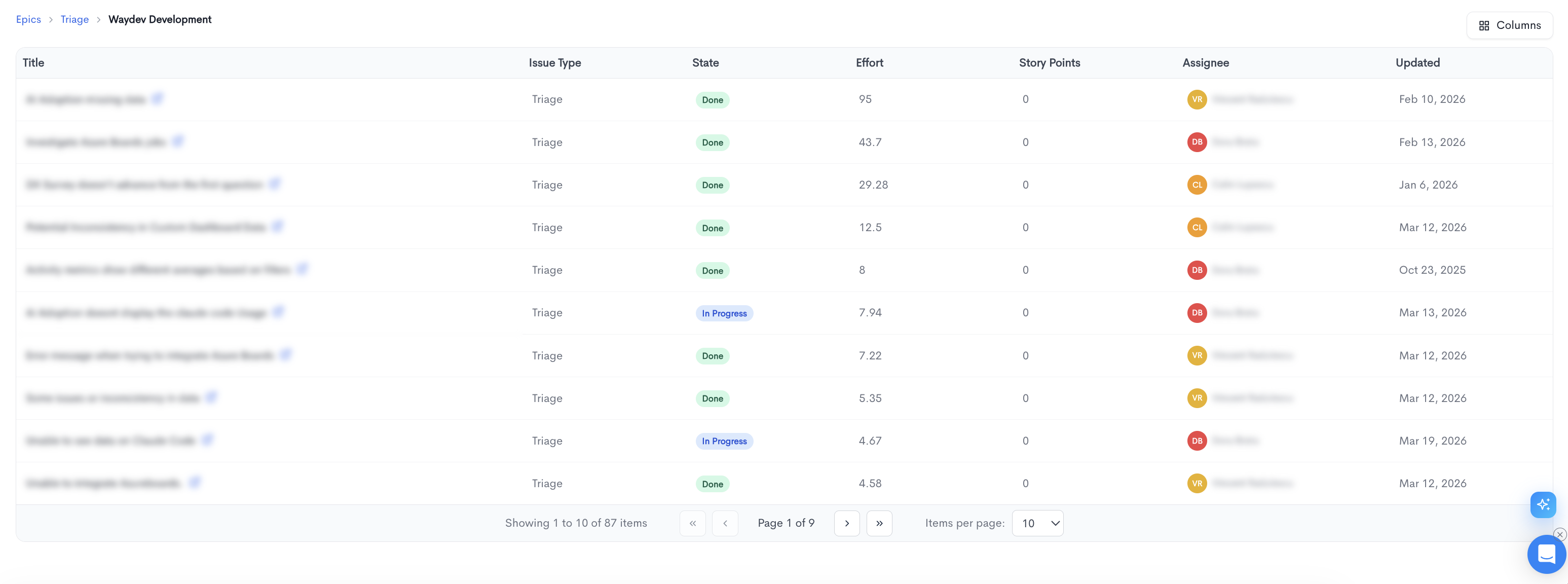
Clicking further into a project opens a detailed issue-level table with the following columns:
-
Title - The issue title, linked to the source provider.
-
Issue Type - The type of issue (e.g. Triage, Spike, Sub-task).
-
State - The current state of the issue (e.g. Done, In Progress, To Do).
-
Effort - The effort value for the issue.
-
Story Points - The story points assigned to the issue.
-
Assignee - The developer assigned to the issue.
-
Updated - The date the issue was last updated.
Allocation by Issue Labels
When the Issue Labels grouping is selected, the table lists all labels ranked by allocation, showing the same columns as the Issue Types view (Tickets, Story Points, Allocation FTE, Est. Cost, Last Activity, Contributors).
Allocation by Epics
When the Epics grouping is selected, the table lists all epics ranked by allocation. Each row shows the epic name along with Tickets, Story Points, Allocation FTE, Est. Cost, Last Activity, and Contributors columns.

Filters
Filters available at the top of the Breakdown tab include date range, Issue, Attributes, Teams, Groups, and Settings.
Settings tab
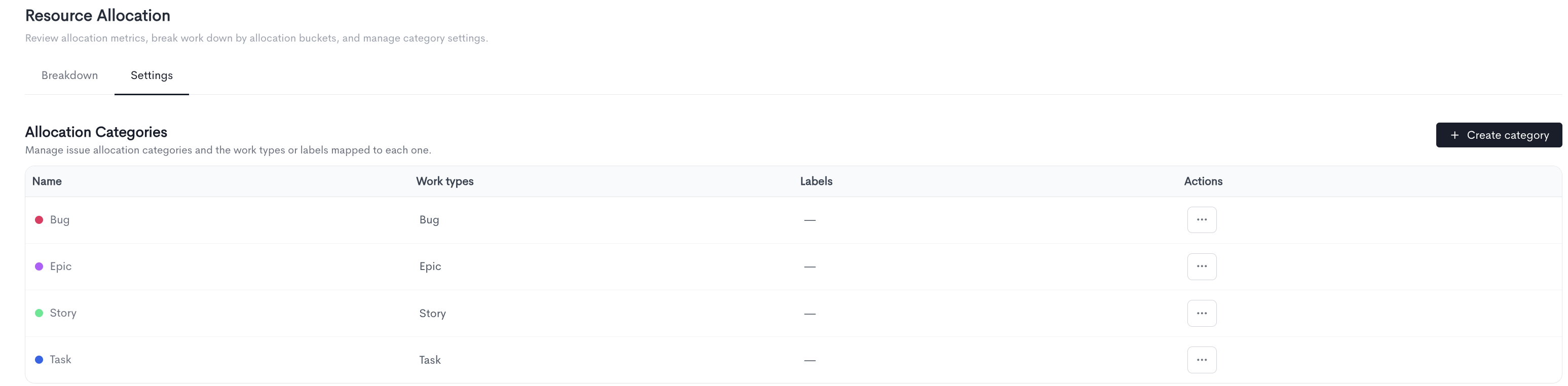
The Settings tab allows you to manage allocation categories and the work types or labels mapped to each one.
All existing categories are listed in a table with the following columns:
- Name - The name and color of the category.
- Work types - The work types mapped to this category.
- Labels - The labels mapped to this category.
- Actions - Options to edit or delete the category via the ··· menu.
To create a new category, click + Create category in the top-right corner.
Creating a category
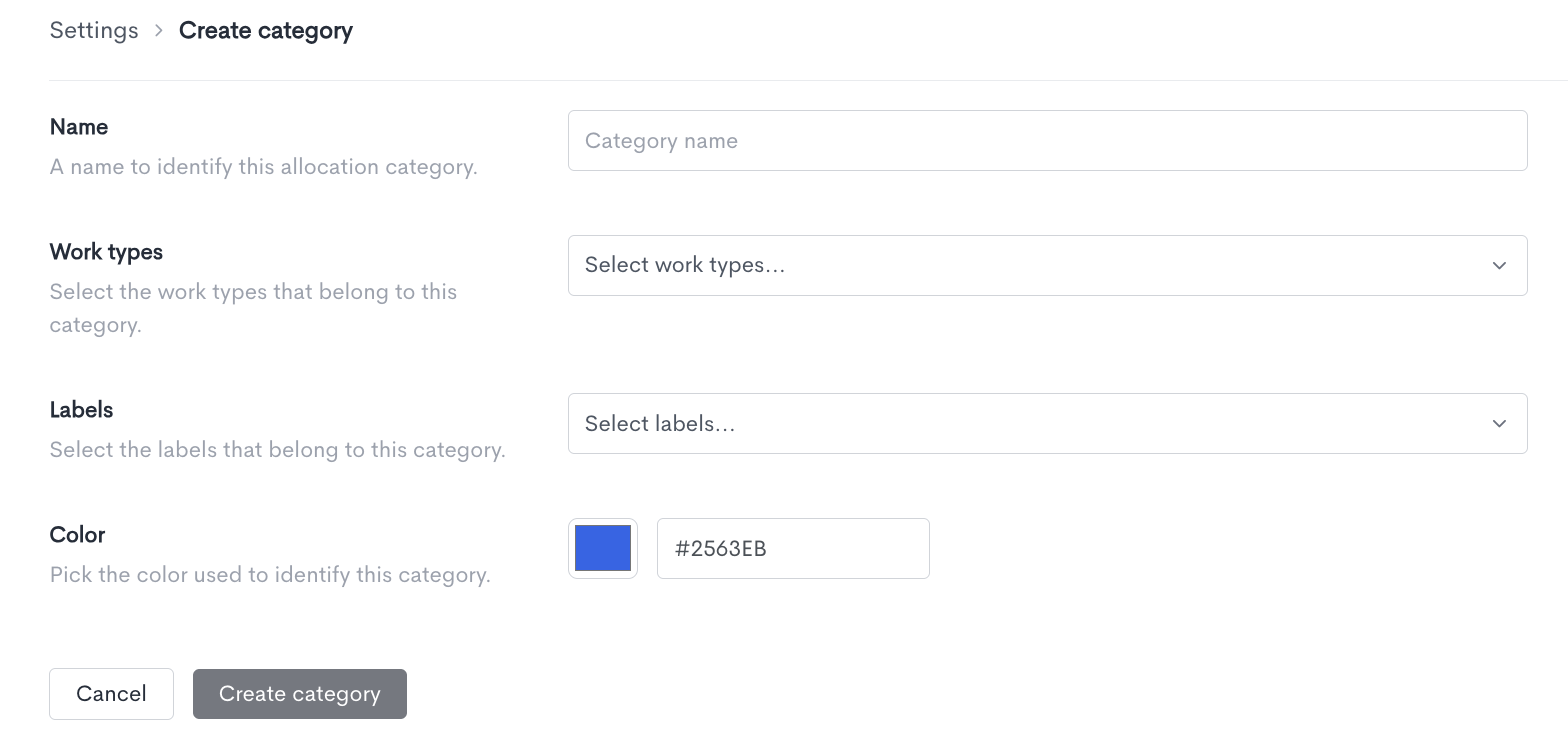
When creating a new allocation category, fill in the following fields:
- Name - A name to identify this allocation category.
- Work types - Select the work types that belong to this category.
- Labels - Select the labels that belong to this category.
- Color - Pick a color to identify this category in charts and tables. You can enter a hex code directly or use the color picker.
Once all fields are filled in, click Create category to save. Click Cancel to discard the changes and return to the Settings tab.
Updated 6 months ago