

Attributes
Attributes
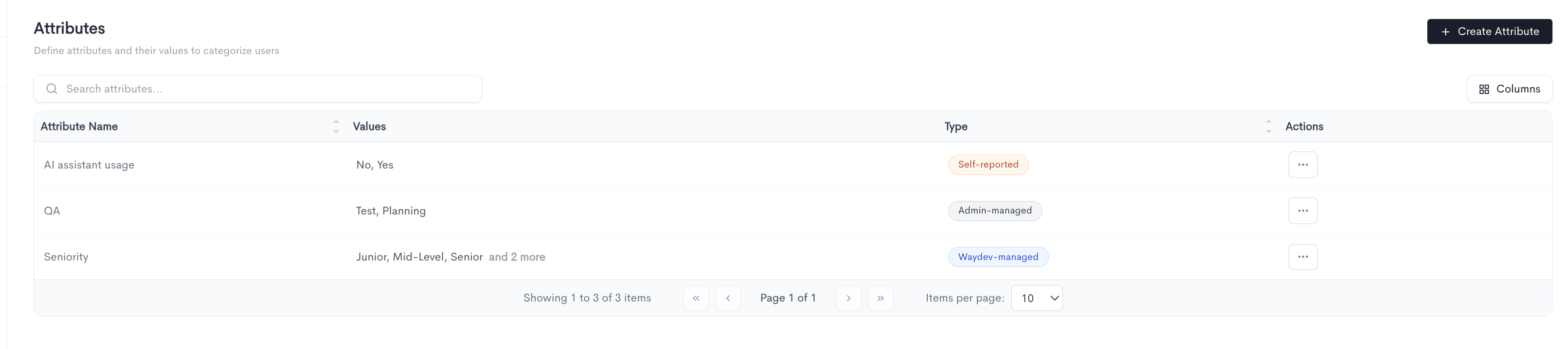
Attributes allow you to define custom properties for users, enabling more precise segmentation and advanced filtering in reports. You can access the Attributes page under Settings → Attributes.
Attributes come in two types:
- Admin-managed — Created and fully managed by an admin. Options can be added, edited, or removed at any time.
- Waydev-managed — Predefined and maintained by Waydev. Options cannot be edited (e.g. Seniority: Junior, Mid-Level, Senior, Staff, Principal).
- (Not released yet)Self-reported — Generated through snapshots or studies and reported by the users themselves. Options can be edited by an admin.
All existing attributes are listed in a searchable and sortable table with the following columns:
- Attribute Name — The name of the attribute.
- Values — The list of possible values defined for the attribute. Additional values beyond the visible ones are indicated by an "and X more" label.
- Type — Indicates whether the attribute is Self-reported, Admin-managed, or Waydev-managed.
- Actions — Options to edit or delete the attribute via the ··· menu.
To create a new attribute, click + Create Attribute in the top-right corner.
Adding an attribute
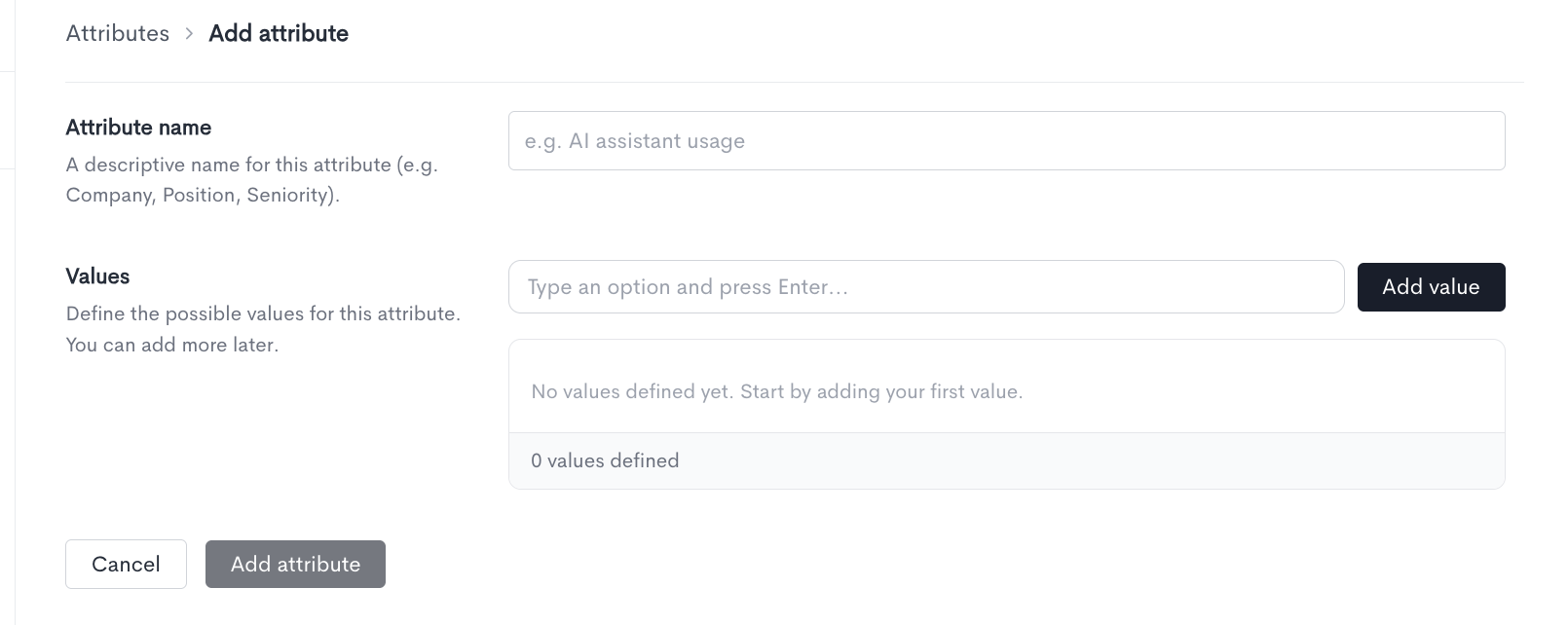
When creating a new attribute, fill in the following fields:
- Attribute name — A descriptive name for the attribute (e.g. Company, Position, Seniority).
- Values — Define the possible values for this attribute. Type an option and press Enter or click Add value to add it to the list. You can add more values later. At least one value is required.
Once all fields are filled in, click Add attribute to save. Click Cancel to discard the changes and return to the Attributes list.
Assigning attributes to users
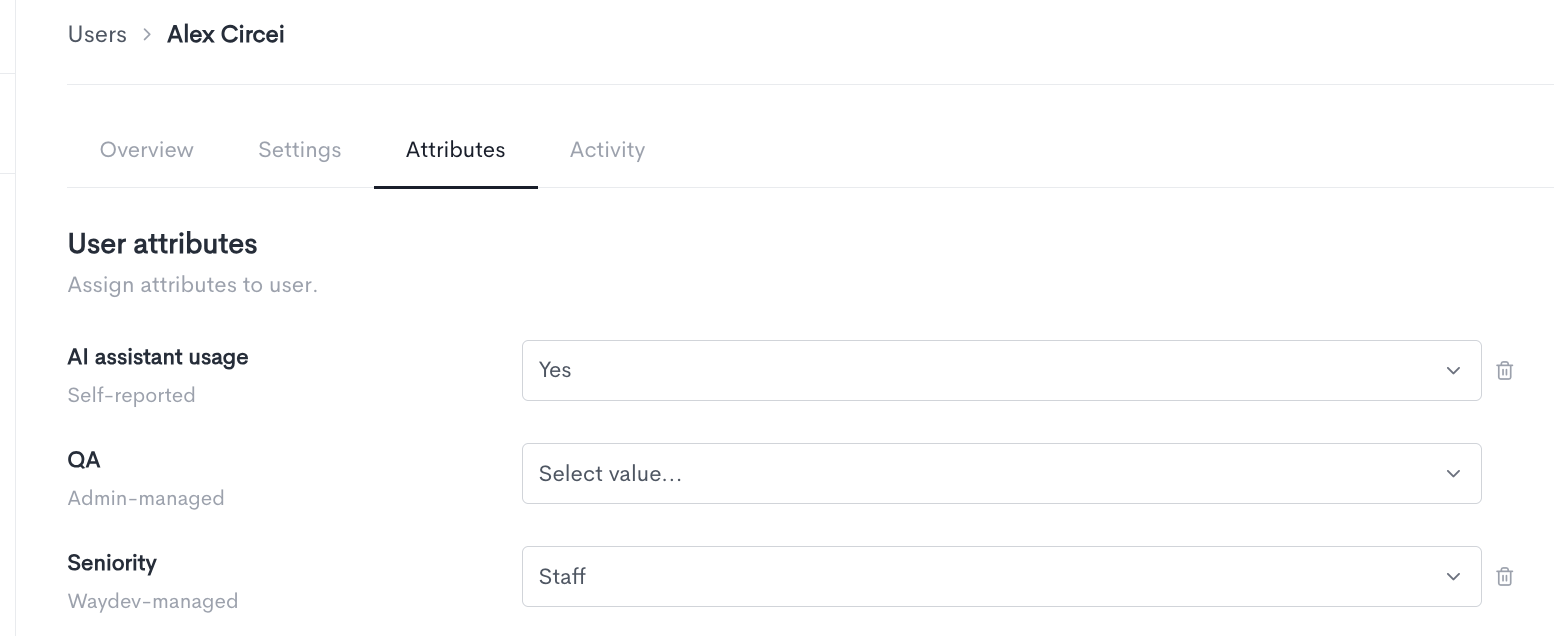
Attributes can be assigned to individual users from the Attributes tab on the User Details page. All available attributes are listed, and each one allows selecting a single value from a dropdown. If no value is applicable, the attribute can be left unassigned. Values can be updated or removed at any time.
Updated about 1 month ago