

Roles
Overview
Roles let you create custom permission sets and control which features and settings users can access across the platform. Each role bundles a collection of grants that determine what a user assigned to that role can see and do.
Accessing Roles
Navigate to Settings > Users, then select the Roles tab. This sits alongside Users, Attributes, and Single Sign-On in the top navigation.
Roles List
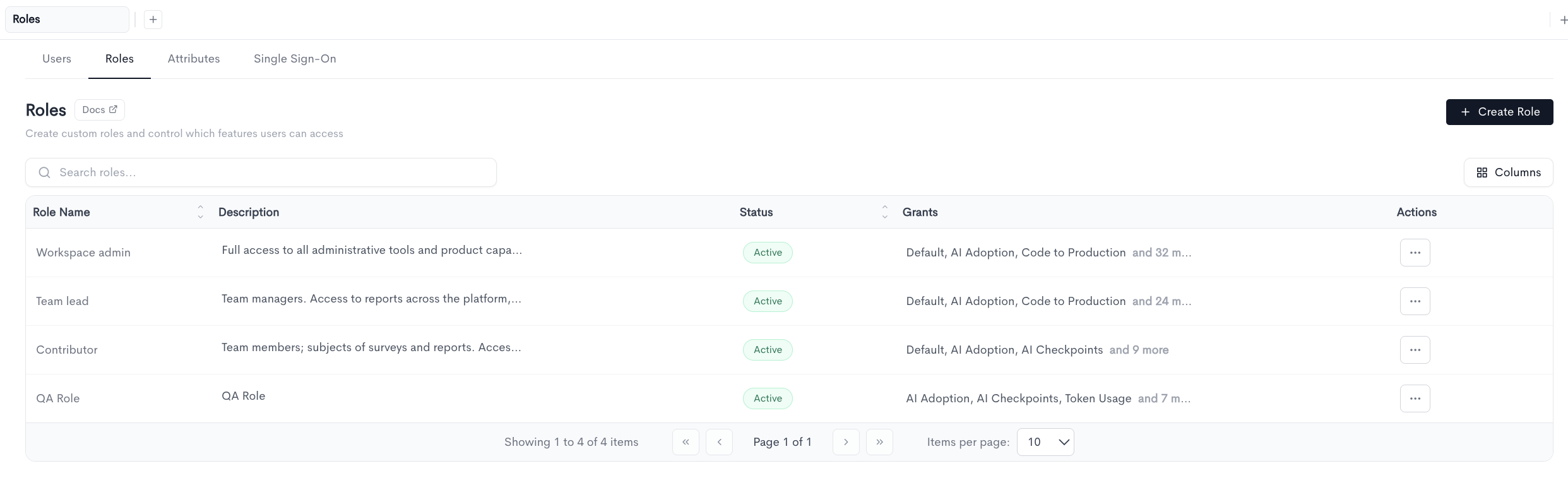
The Roles page displays a table of all roles in your account, with a search bar to filter by role name.
Table columns:
- Role Name - the name of the role.
- Description - a short summary of what the role is used for.
- Status - shows
Activeif the role can be assigned to users, orInactiveif it cannot. - Grants - a preview of the features and settings included in the role.
- Actions - opens a menu to edit or manage the role.
Default Roles
Every account includes four built-in roles.
-
Workspace admin - Full access to all administrative tools and product capabilities.
-
Team lead - Team managers. Access to reports across the platform.
-
Contributor - Team members who are subjects of surveys and reports.
-
QA Role - A role scoped to quality assurance related grants.
Creating a Role
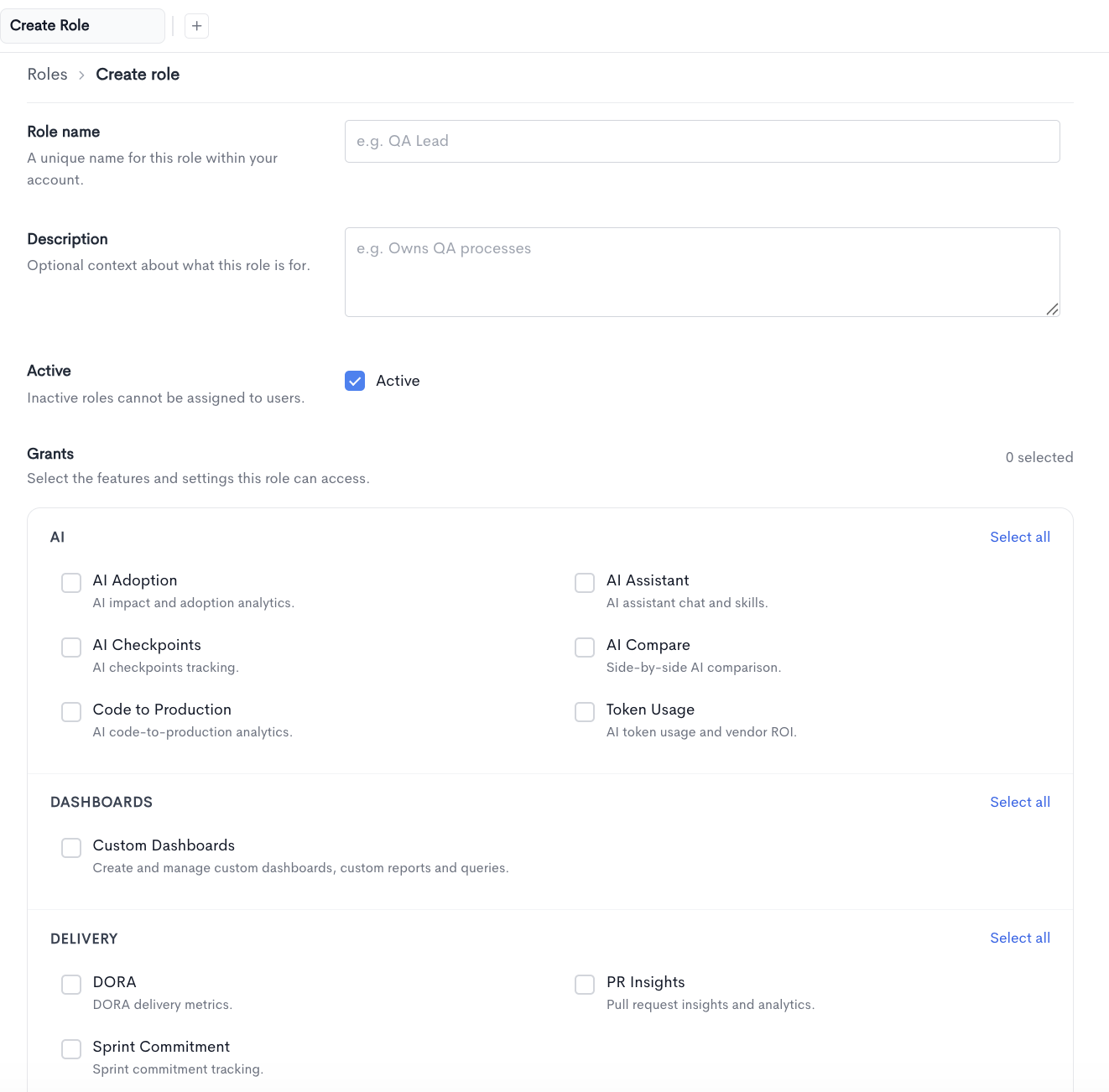
Click Create Role from the Roles page to open the role creation form.
Role name - A unique name for this role within your account.
Description - Optional context about what this role is for.
Active - A checkbox that determines whether the role can be assigned to users. Inactive roles cannot be assigned to users.
Grants - The features and settings this role can access. The total number of selected grants is shown next to the section header.
Grants are grouped into categories. Each category has a Select all or Deselect all link to quickly toggle every grant within it.
Grants
AI
- AI Adoption - AI impact and adoption analytics.
- AI Assistant - AI assistant chat and skills.
- AI Checkpoints - AI checkpoints tracking.
- AI Compare - Side-by-side AI comparison.
- Code to Production - AI code-to-production analytics.
- Token Usage - AI token usage and vendor ROI.
Dashboards
- Custom Dashboards - Create and manage custom dashboards, custom reports, and queries.
Delivery
- DORA - DORA delivery metrics.
- PR Insights - Pull request insights and analytics.
- Sprint Commitment - Sprint commitment tracking.
Diagnose
- Hygiene - Repository and workflow hygiene.
- Signals - Signals and signal deliveries.
Health
- Benchmarks - Industry benchmarks and averages.
- Contributor Insights - Per-contributor insights.
- Insights - Platform insights.
- Merge Quality - Merge quality analytics.
- Team Insights - Per-team insights.
Planning
- Resource Allocation - Resource allocation and capacity.
Settings
- API Docs - Access the API documentation and schema.
- Hotfix Detection - Manage the hotfix detection pattern.
- Manage API key - Manage API keys.
- Manage Attributes - Manage user attributes.
- Manage Deploy & Incident Rules - Manage deployment and incident rules.
- Manage Groups - Manage groups.
- Manage Integrations - Manage integrations and data connections.
- Manage Issue Collection Groups - Manage issue collections and collection groups.
- Manage Issue States - Manage issue state mappings.
- Manage MCP token - Manage MCP tokens.
- Manage Repository Groups - Manage repositories and repository groups.
- Manage Roles - Manage custom roles and grant assignments.
- Manage Single Sign-On - Manage single sign-on settings.
- Manage Teams - Manage teams and their members.
- Manage Users - Manage users.
- PR Exclusion - Manage the pull request exclusion pattern.
Other
- Default - Grant default permissions for all users(mandatory regardless of anonymisation settings).
Saving a Role
Click Create role to save the new role, or Cancel to discard changes and return to the Roles list.
Updated about 2 months ago