

Integrations
Before you begin
Make sure you have admin access to Waydev and the necessary credentials or permissions for the services you want to connect.
Adding an integration
Waydev integrates with a variety of developer tools and platforms to centralize your engineering data. To add a new integration:
- Navigate to Settings → Integrations in the left sidebar.
- Click + Add Integration in the top-right corner.
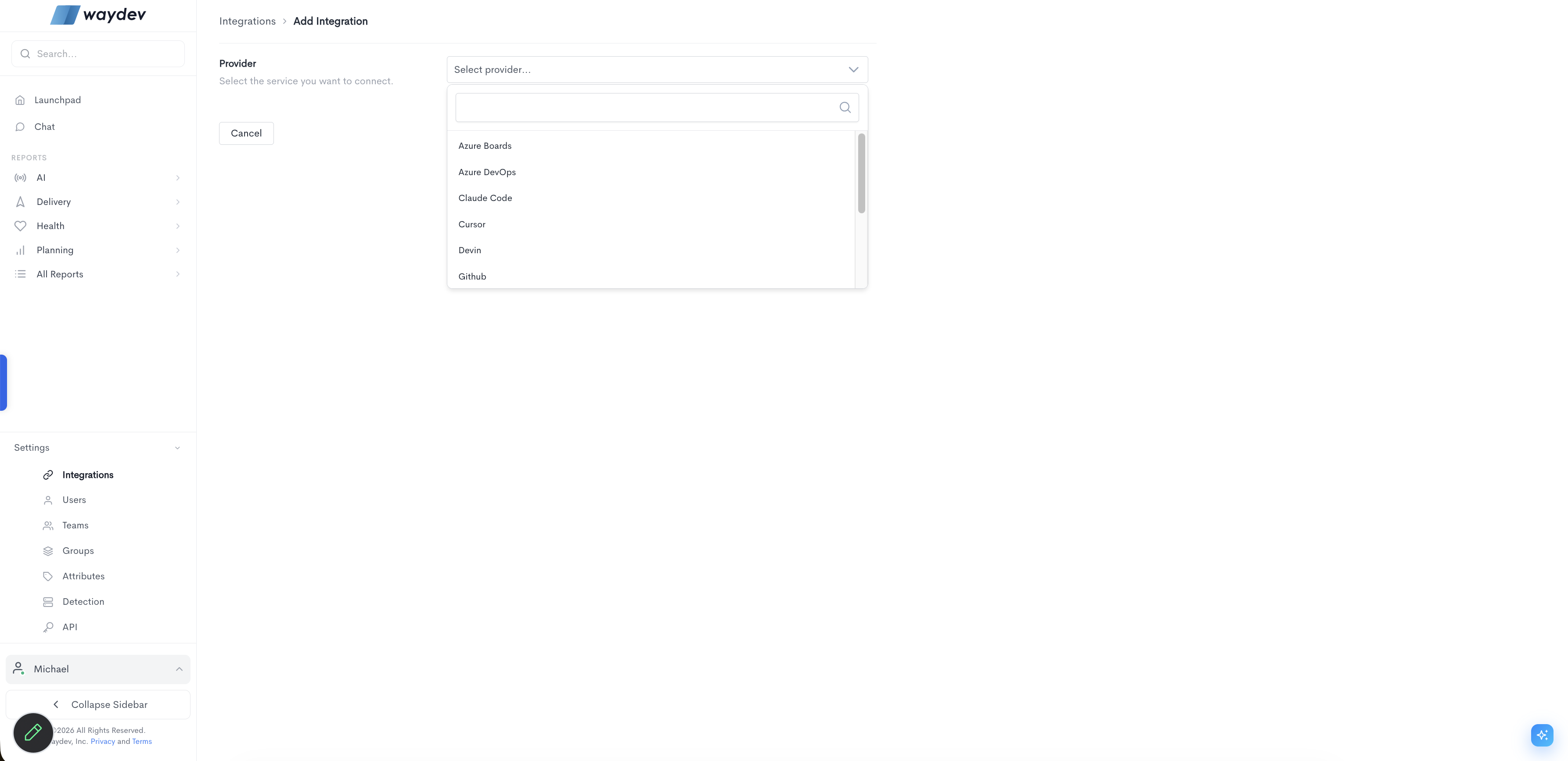
- In the Provider dropdown, search for or select the service you want to connect.
- Follow the authorization steps for the selected provider.
Available providers include:
-
Azure Boards
-
Azure DevOps
-
Claude Code
-
Cursor
-
Devin
-
GitHub
-
GitHub Copilot
-
Gitlab
-
Jira
-
Slack Bot
-
Windsurf
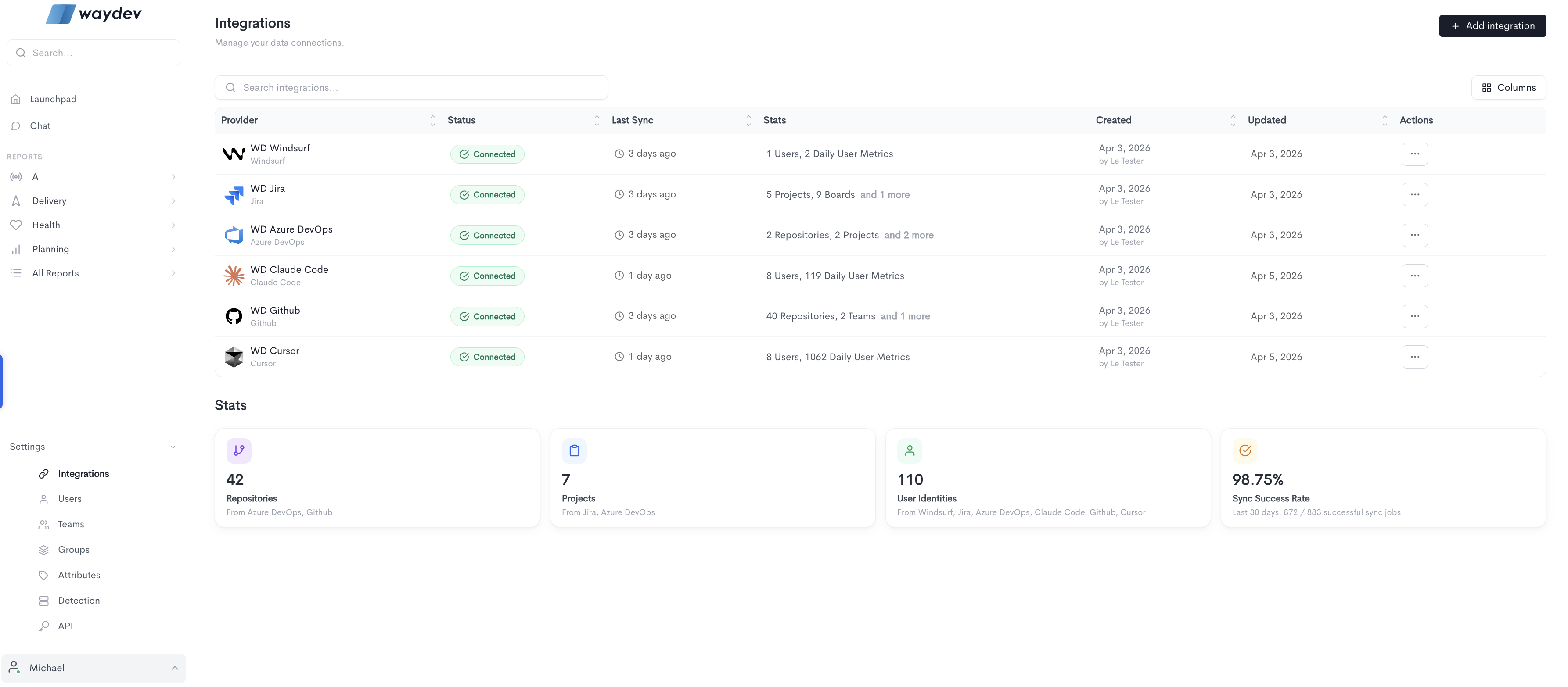
Integration stats
At the bottom of the Integrations page, a Stats panel gives you a high-level overview of all connected data:
- Repositories — Total repositories synced, sourced from Azure DevOps and GitHub.
- Projects — Total projects synced, sourced from Jira and Azure DevOps.
- User Identities — Total user identities resolved across all integrations.
- Sync Success Rate — Percentage of successful sync jobs over the last 30 days.
Managing integrations
Once connected, all integrations are listed in the Integrations table with the following columns:
- Provider — The name and type of the connected service.
- Status — Shows whether the integration is Connected or has an error.
- Last Sync — The time elapsed since the last successful data sync.
- Stats — A summary of the data pulled from the integration (e.g. repositories, users, boards).
- Created — The date the integration was added and the user who added it.
- Updated — The date of the most recent change to the integration.
- Actions — Options to edit or remove the integration.
Actions menu
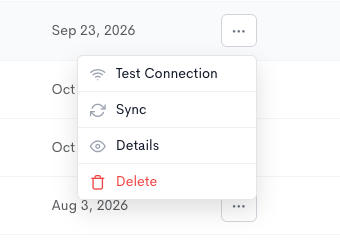
Each integration has an Actions menu (the ··· button at the end of its row) with the following options:
- Test Connection — Runs a connectivity check to verify that Waydev can still reach the provider. Useful after credential changes or if a sync has been failing.
- Sync — Starts a sync for a period you choose, for every allowlisted repository or for a selection. Available once every 24 hours.
- Details — Opens a detail view with more information about the integration, including its configuration and sync history.
- Delete — Permanently removes the integration from Waydev. This action cannot be undone.
Sync
This action fetches data for a period you choose instead of waiting for the next scheduled sync.
It includes a warning: this sync uses the provider's API rate allowance for that integration. If the allowance runs out, the provider rejects further requests, and the next scheduled sync for this integration waits until the limit resets.
- Choose a Period. The default is Last 24 hours. You can also choose Last week, Last 2 weeks, or Last month. One month is the furthest the sync can look back.
- Choose one or more Repository groups. The Repositories list then shows only the allowlisted repositories in those groups, and those repositories are selected for you. Clearing the groups clears the repository selection.
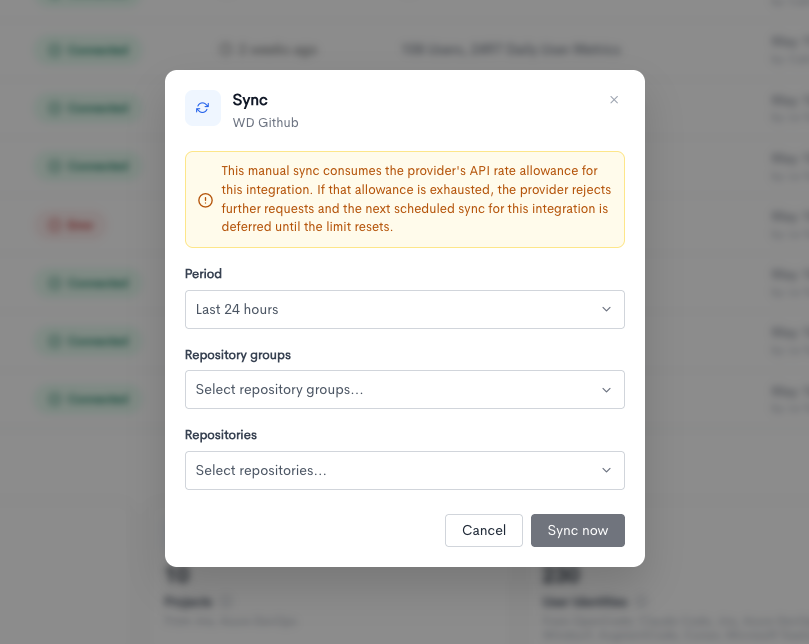
For GitLab integrations, the repository field is labeled Projects and lists allowlisted projects. Integrations that do not sync repositories or projects, such as a Slack bot, have no resource picker. Sync now runs for the whole integration.
You can start one sync per integration every 24 hours. After a sync is started, Sync is disabled and the tooltip shows the date and time when it becomes available again.
Coding Integration details
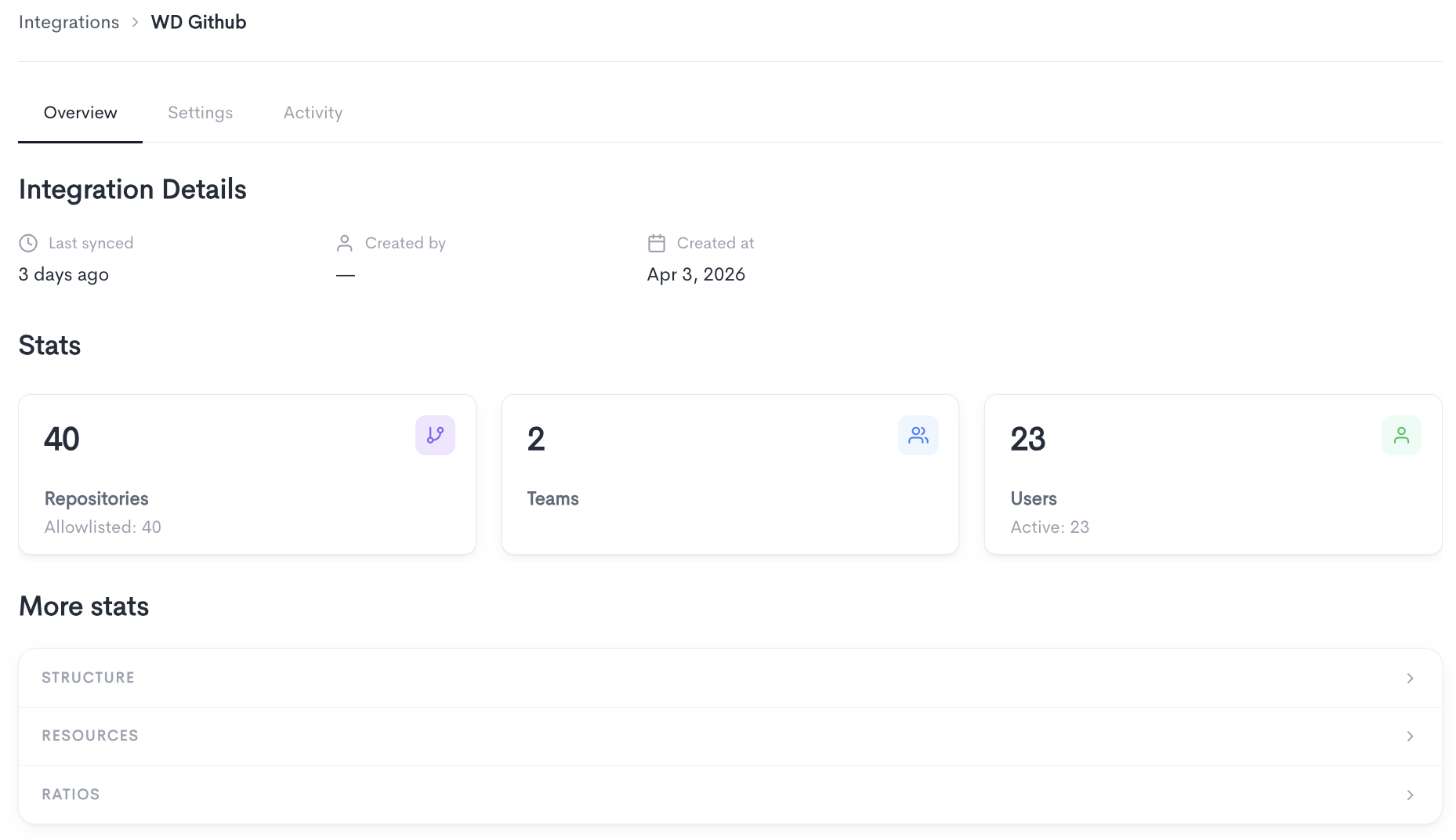
Clicking Details in the Actions menu opens the integration's detail page, which is organized into three tabs:
- Overview — Shows a summary of the integration, including when it was last synced, who created it, and when. It also displays key stats (e.g. Repositories, Teams, Users) and expandable More stats categories for Structure, Resources, and Ratios.
- Settings — Allows you to update the integration's configuration.
- Activity — Shows a log of sync activity for the integration.
Overview
Shows a summary of the integration, including when it was last synced, who created it, and when. It also displays key stats (e.g. Repositories, Teams, Users) and expandable More stats categories for Structure, Resources, and Ratios.
More stats
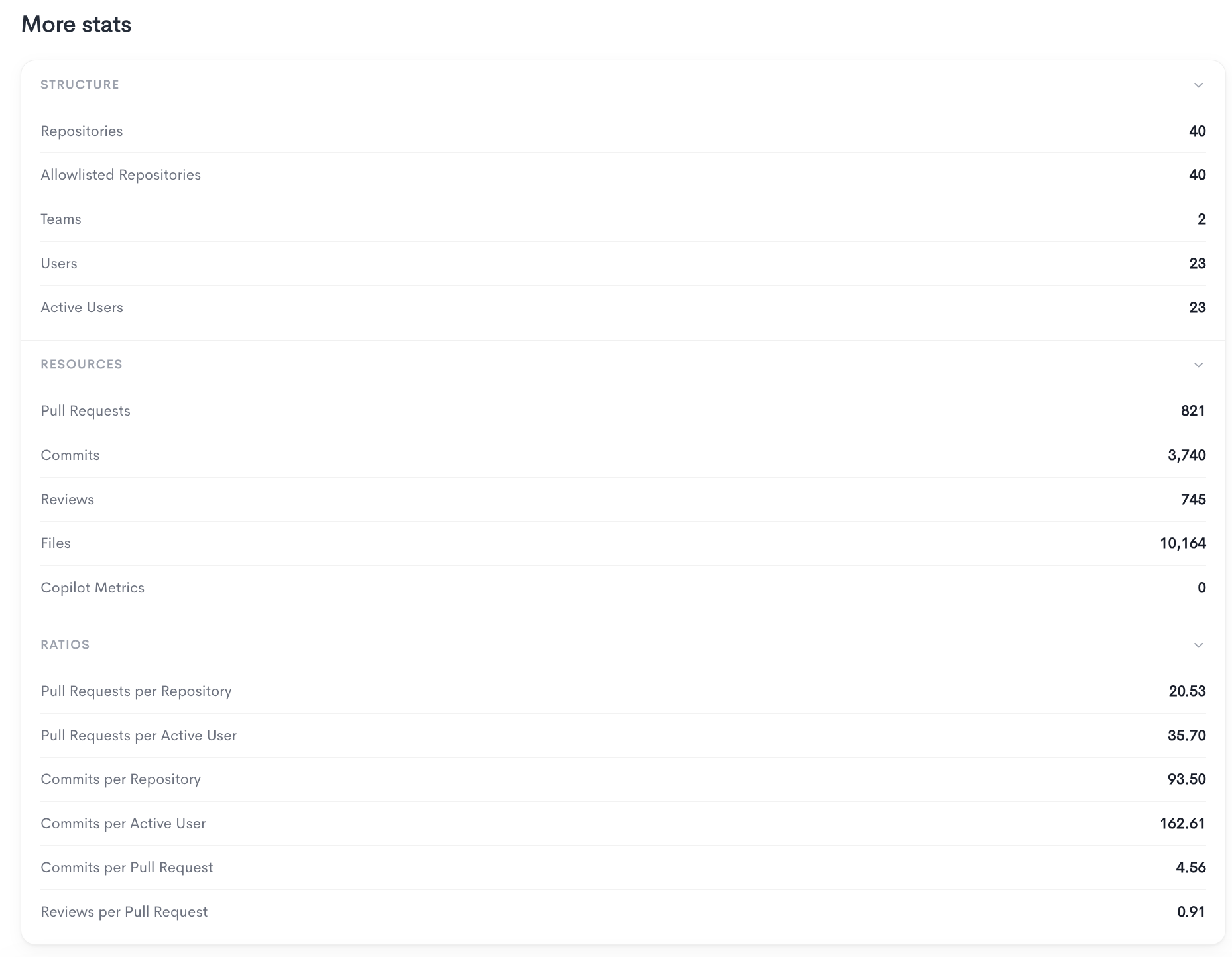
The More stats section on the Overview tab provides a detailed breakdown of the data synced from the integration, organized into three expandable categories:
Structure — Counts of the core entities synced from the provider:
- Repositories — Total number of repositories synced.
- Allowlisted Repositories — Repositories explicitly included for tracking.
- Teams — Number of teams synced.
- Users — Total number of users synced.
- Active Users — Users with recorded activity.
Resources — Volume of engineering activity data synced:
- Pull Requests — Total pull requests synced.
- Commits — Total commits synced.
- Reviews — Total code reviews synced.
- Files — Total files tracked.
- Copilot Metrics — AI-assisted coding metrics (if available).
Ratios — Derived metrics that provide context on team productivity
- Pull Requests per Repository — Average number of pull requests opened across each synced repository.
- Pull Requests per Active User — Average number of pull requests created per active user, indicating individual contribution frequency.
- Commits per Repository — Average number of commits pushed across each synced repository.
- Commits per Active User — Average number of commits made per active user, reflecting individual coding activity.
- Commits per Pull Request — Average number of commits included in each pull request, indicating the typical size of a change.
- Reviews per Pull Request — Average number of code reviews performed per pull request, reflecting the depth of the review process.
Code Integration Settings
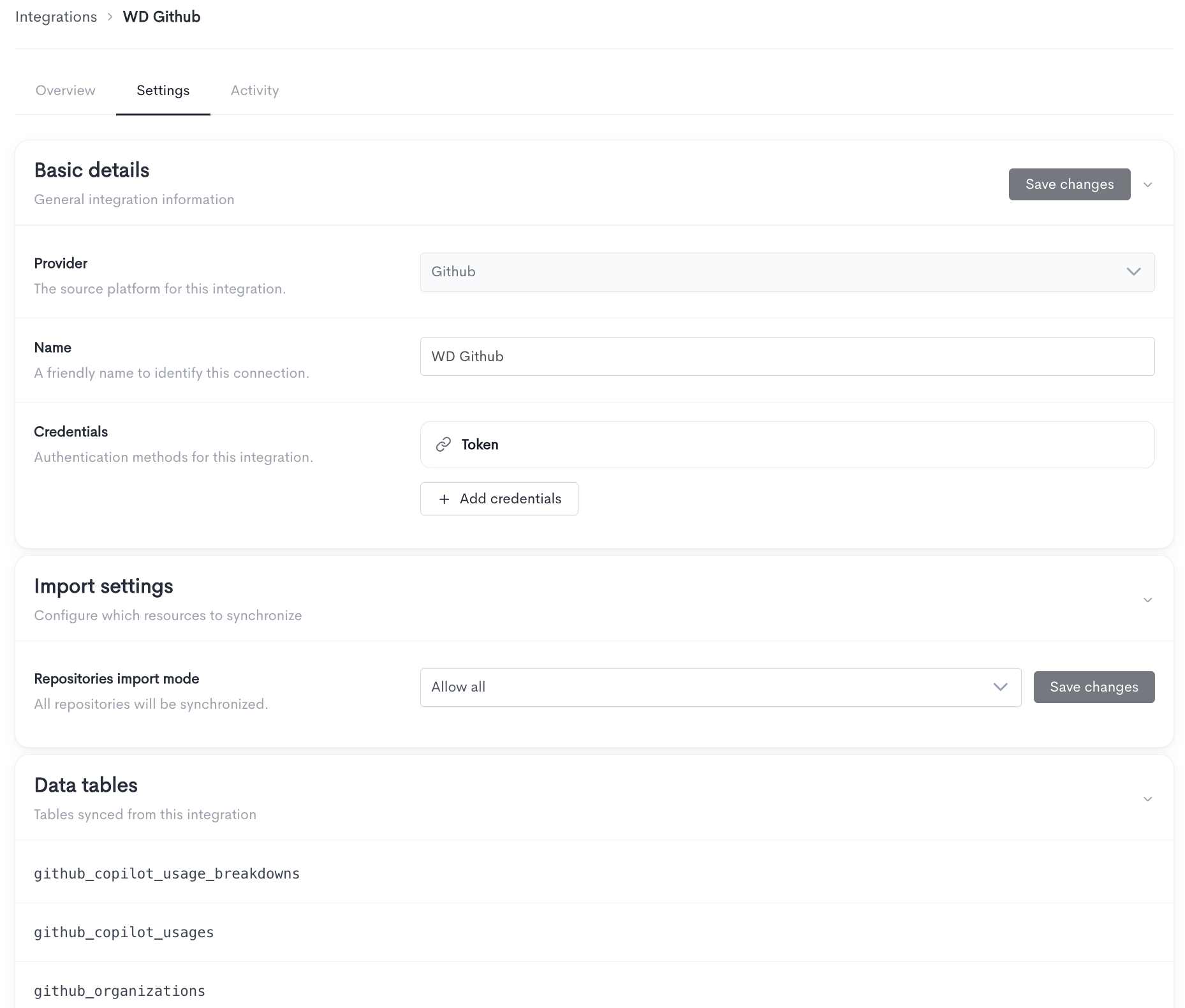
The Settings tab allows you to update the configuration of an existing integration. It is divided into three sections:
Basic details — General information about the integration:
- Provider — The source platform for this integration (e.g. GitHub). This cannot be changed after the integration is created.
- Name — A friendly name to identify this connection. You can update this at any time.
- Credentials — The authentication method used to connect to the provider (e.g. Token). You can add or replace credentials using the + Add credentials button.
Import settings — Controls which resources are synchronized:
- Repositories import mode — Defines which repositories are synced. Set to Allow all by default, meaning all repositories will be synchronized. Click Save changes to apply any updates.
Data tables — A read-only list of the database tables populated by this integration.
Code Integration Activity
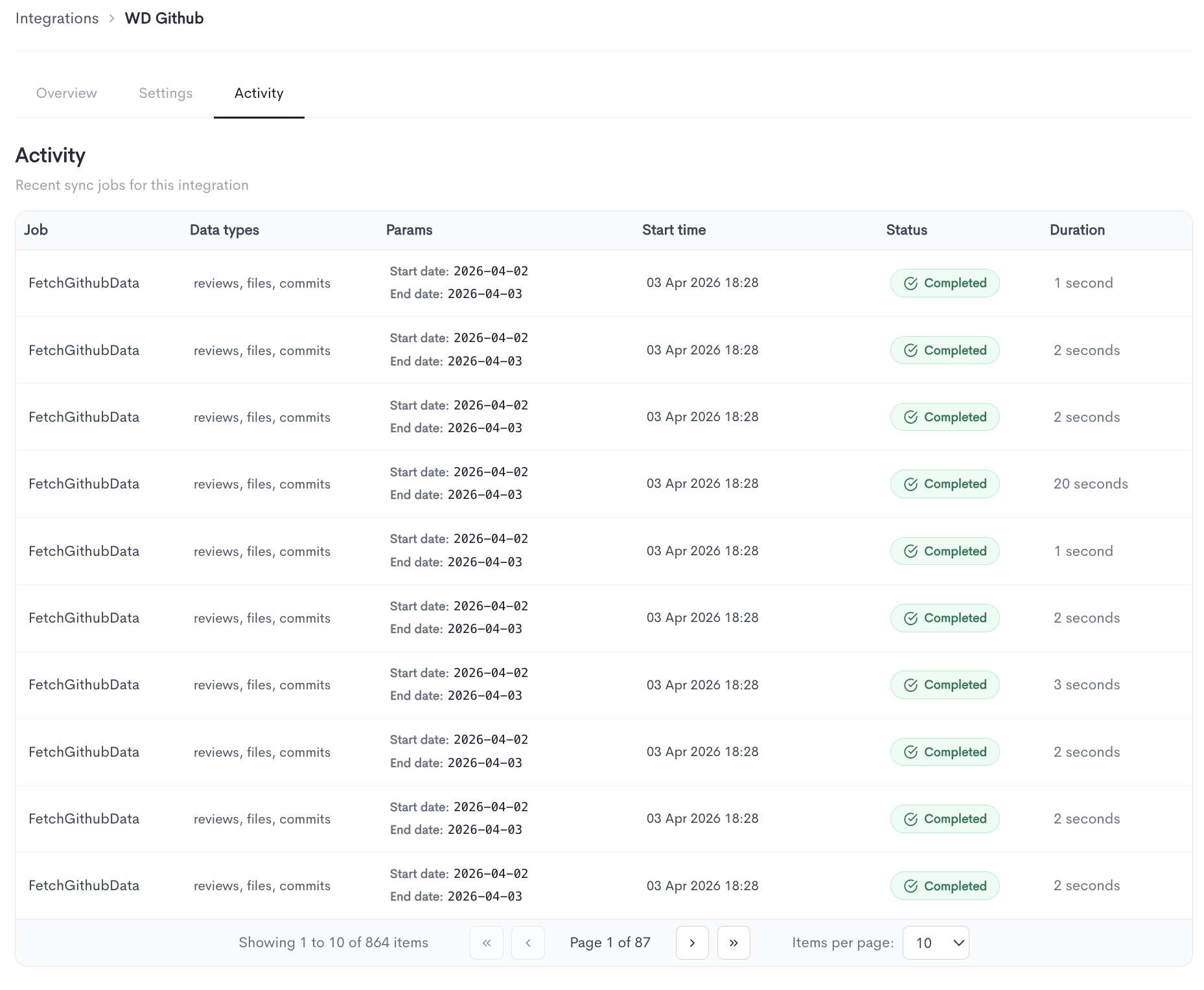
The Activity tab shows a log of recent sync jobs for the integration. Each row in the table represents a single sync job and includes the following columns:
- Job — The name of the sync job executed (e.g.
FetchGithubData). - Data types — The types of data synced in that job (e.g. reviews, files, commits).
- Params — The date range covered by the sync job, shown as a start date and end date.
- Start time — The date and time the job was triggered.
- Status — Whether the job completed successfully or failed.
- Duration — How long the job took to complete.
The table is paginated and shows 10 items per page by default. You can navigate through pages or adjust the number of items displayed using the controls at the bottom of the table.
Ticketing Integration details
Overview
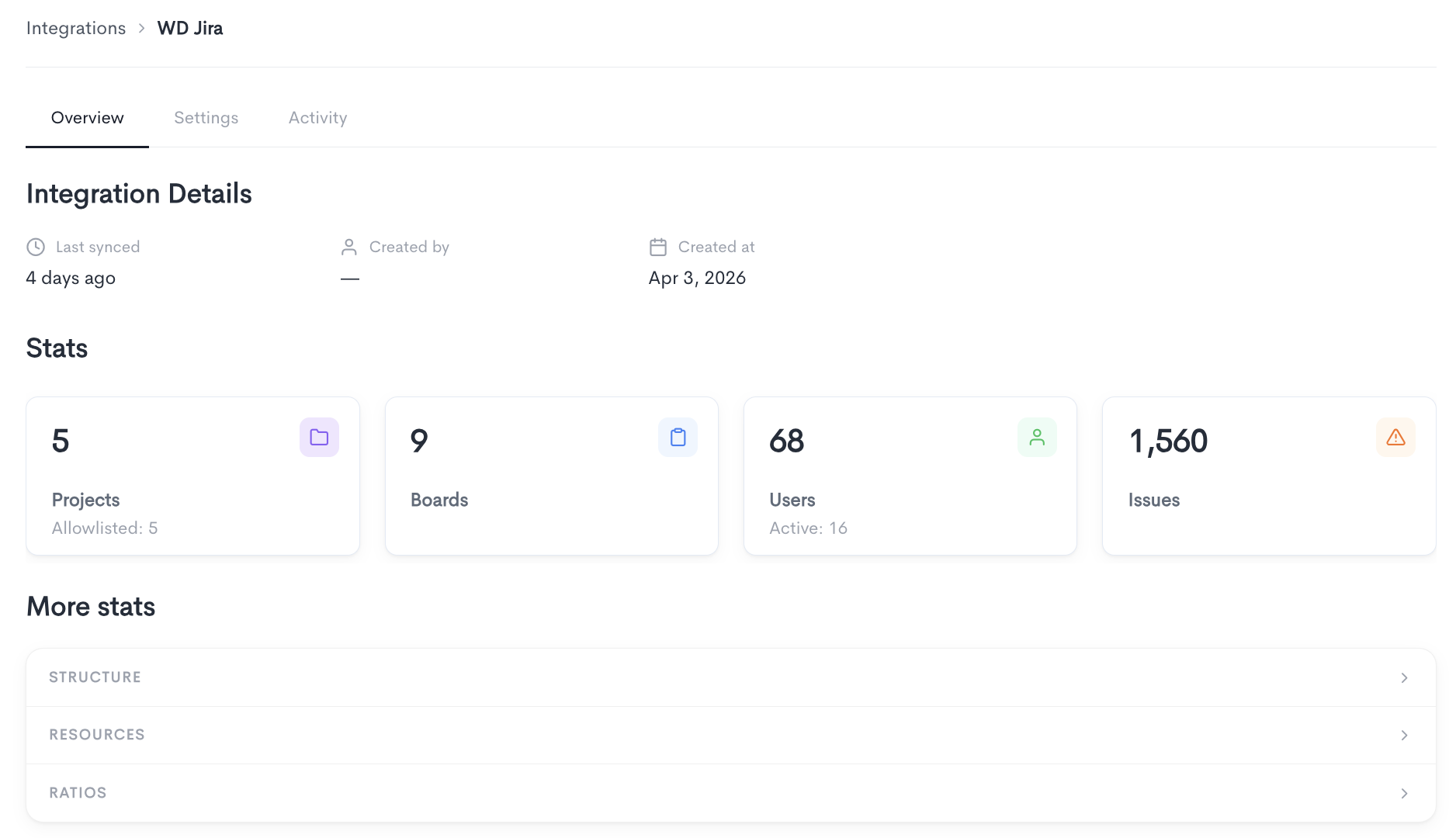
The ticketing integration Overview tab gives you a summary of all data synced from your workspace, including projects, boards, users, and issues.
Integration Details — Shows when the integration was last synced, who created it, and when it was created.
Stats
A quick overview of the top-level counts for this integration:
- Projects — Total number of projects synced, with allowlisted projects shown separately.
- Boards — Total number of boards synced.
- Users — Total number of users synced, with active users shown separately.
- Issues — Total number of issues synced.
More stats
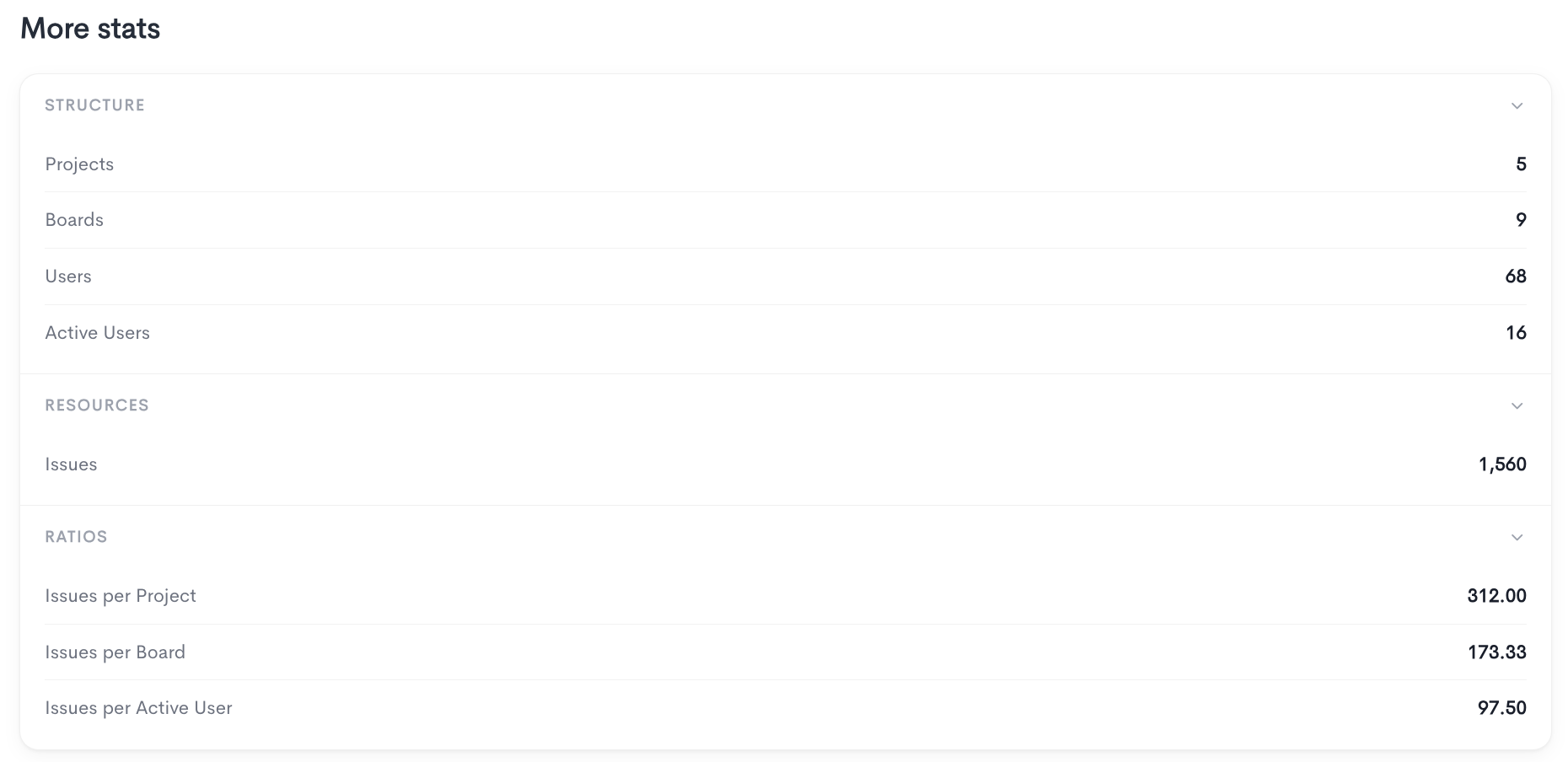
A detailed breakdown organized into three expandable categories:
Structure:
- Projects — Total number of Jira projects available in the integration.
- Boards — Total number of boards across all synced projects.
- Users — Total number of users synced from your Jira workspace.
- Active Users — Users who have recorded activity within the synced data.
Resources:
- Issues — Total number of issues pulled from your Jira projects, including all types such as tasks, bugs, and stories.
Ratios:
- Issues per Project — Average number of issues across each synced project.
- Issues per Board — Average number of issues tracked on each board.
- Issues per Active User — Average number of issues per active user, indicating individual workload distribution.
Ticketing Integration Settings
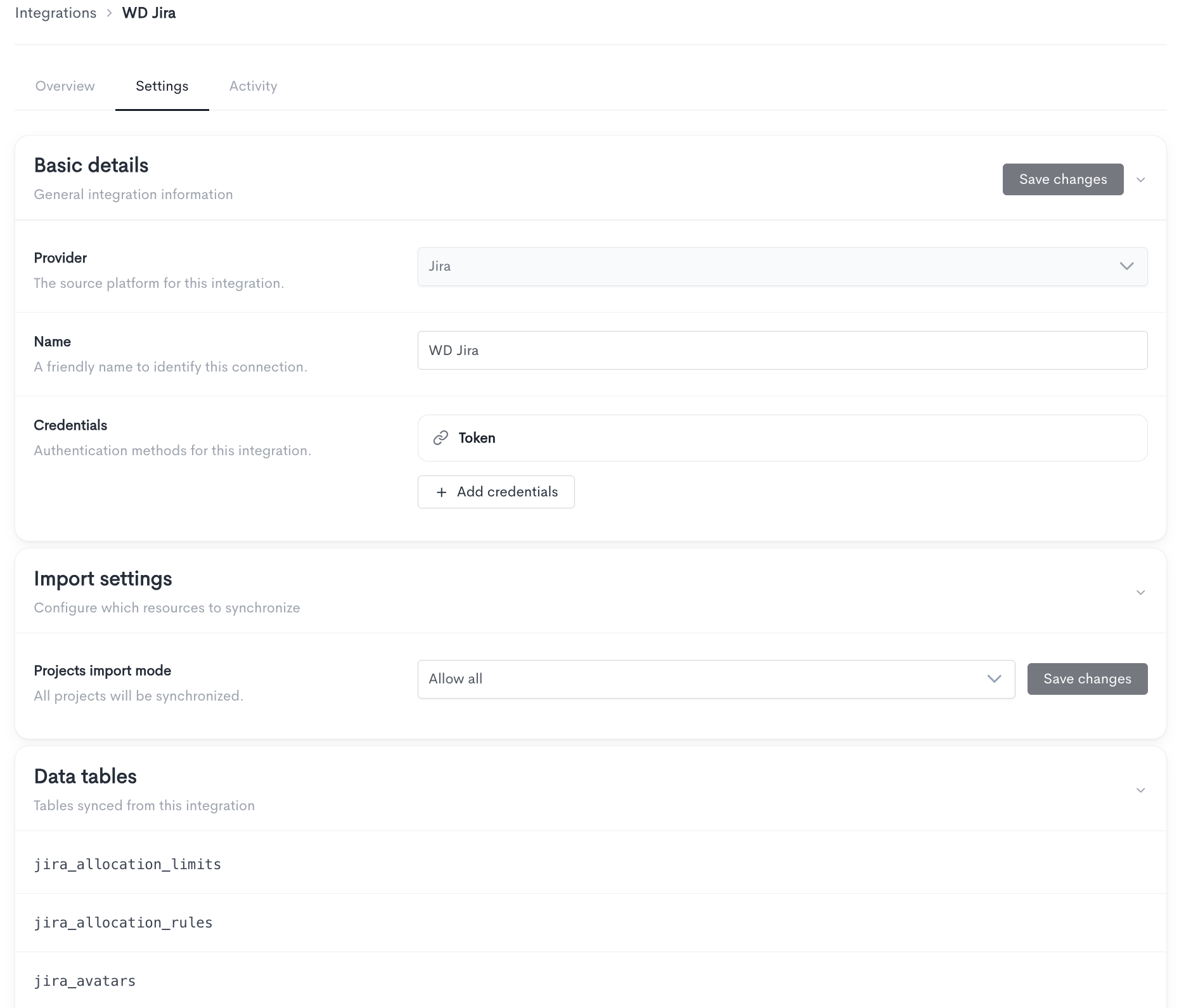
The Settings tab allows you to update the configuration of the Jira integration. It is divided into three sections:
Basic details — General information about the integration:
- Provider — The source platform for this integration (Jira, etc.). This cannot be changed after the integration is created.
- Name — A friendly name to identify this connection. You can update this at any time.
- Credentials — The authentication method used to connect to Jira (e.g. Token). You can add or replace credentials using the + Add credentials button.
Import settings — Controls which resources are synchronized:
- Projects import mode — Defines which Jira projects are synced. Set to Allow all by default, meaning all projects will be synchronized. Click Save changes to apply any updates.
Data tables — A read-only list of the database tables populated by this integration.
Ticketing Integration Activity
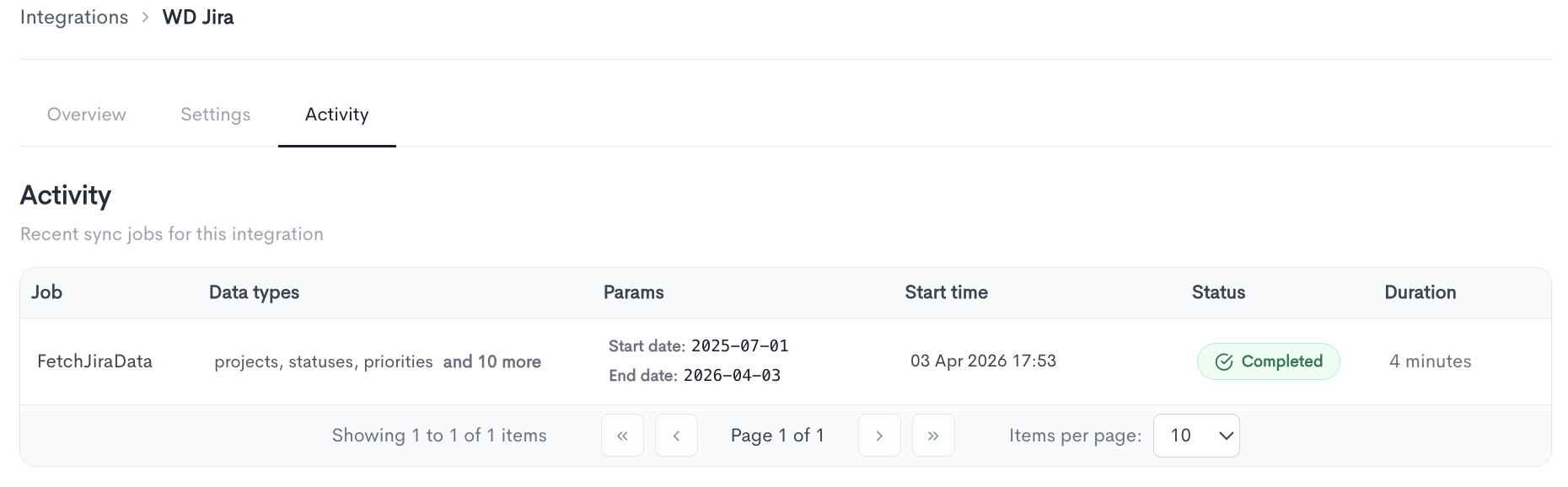
The Activity tab shows a log of recent sync jobs for the Jira integration. Each row in the table represents a single sync job and includes the following columns:
- Job — The name of the sync job executed (e.g.
FetchJiraData). - Data types — The types of data synced in that job (e.g. projects, statuses, priorities, and more).
- Params — The date range covered by the sync job, shown as a start date and end date.
- Start time — The date and time the job was triggered.
- Status — Whether the job completed successfully or failed.
- Duration — How long the job took to complete.
The table is paginated and shows 10 items per page by default. You can navigate through pages or adjust the number of items displayed using the controls at the bottom of the table.
Updated 9 days ago