

Groups
Groups
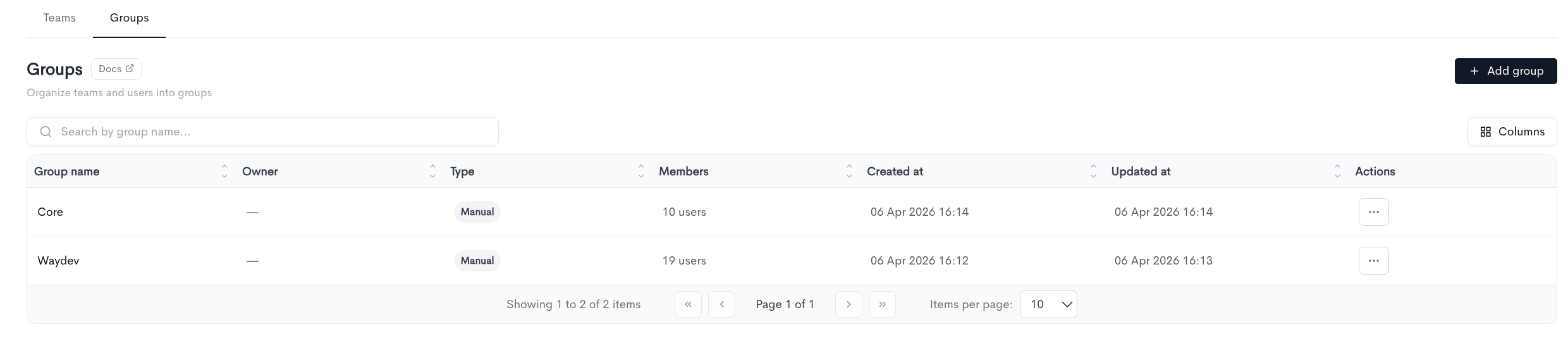
The Groups page allows you to organize teams and users into groups. All existing groups are listed in a table with the following columns:
- Group name — The name of the group.
- Owner — The user responsible for the group, if assigned.
- Type — How members are managed (e.g. Manual).
- Members — The total number of users in the group.
- Created at — The date and time the group was created.
- Updated at — The date and time the group was last modified.
- Actions — Options to edit or delete the group via the ··· menu.
To create a new group, click + Add group in the top-right corner. You can search for existing groups by name using the search bar, or adjust the visible columns using the Columns button. The table is paginated and shows 10 items per page by default.
Adding a group
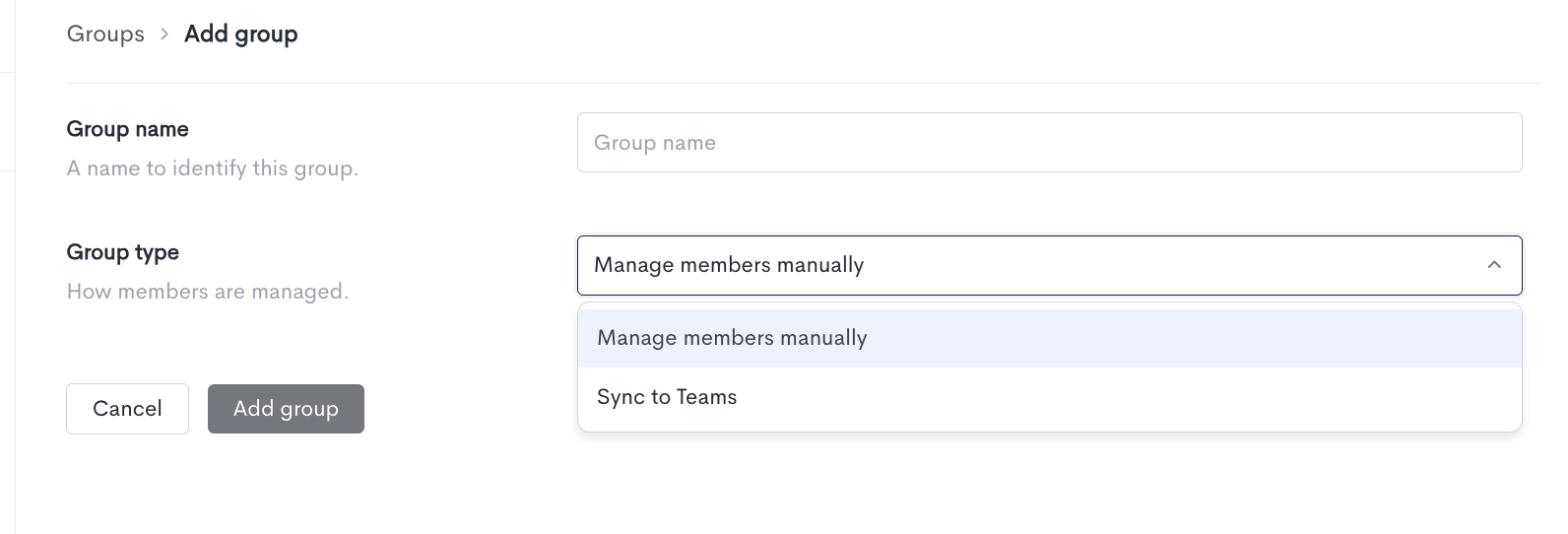
When creating a new group, fill in the following fields:
- Group name — A name to identify this group.
- Group type — Defines how members are managed. Two options are available:
- Manage members manually — Members are added and removed manually by an admin.
- Sync to Teams — Group membership is automatically synchronized with your existing team structure.
Once all fields are filled in, click Add group to save the group. Click Cancel to discard the changes and return to the Groups list.
Updated 5 days ago