

Teams
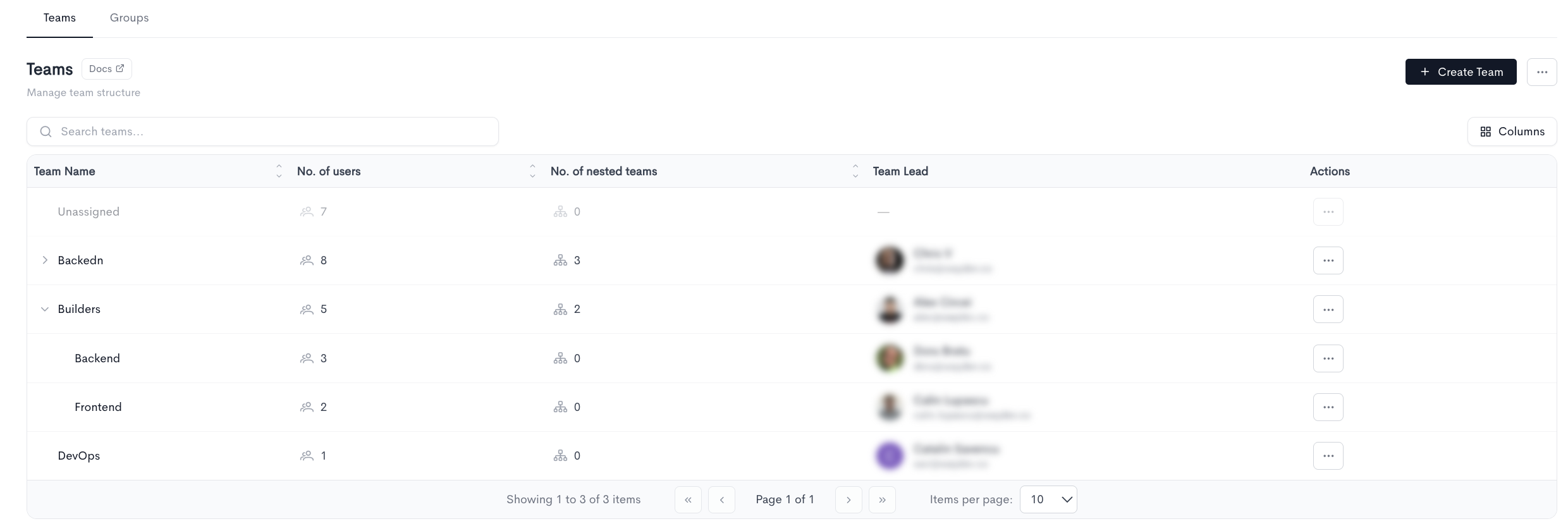
The Teams page allows you to manage your organization's team structure. All existing teams are listed in a table with the following columns:
- Team Name — The name of the team. Teams can be expanded to reveal nested sub-teams using the arrow on the left.
- No. of users — The number of users assigned to the team.
- No. of nested teams — The number of sub-teams nested under this team.
- Team Lead — The name and email address of the team lead.
- Actions — Options to edit or delete the team via the ··· menu.
Teams can be nested to mirror your organization's hierarchy. For example, a Devs team can contain Frontend and Backend sub-teams. You can expand or collapse nested teams directly in the table.
To create a new team, click + Create Team in the top-right corner. You can also search for existing teams using the search bar, or adjust the visible columns using the Columns button. The table is paginated and shows 10 items per page by default.
Creating a team
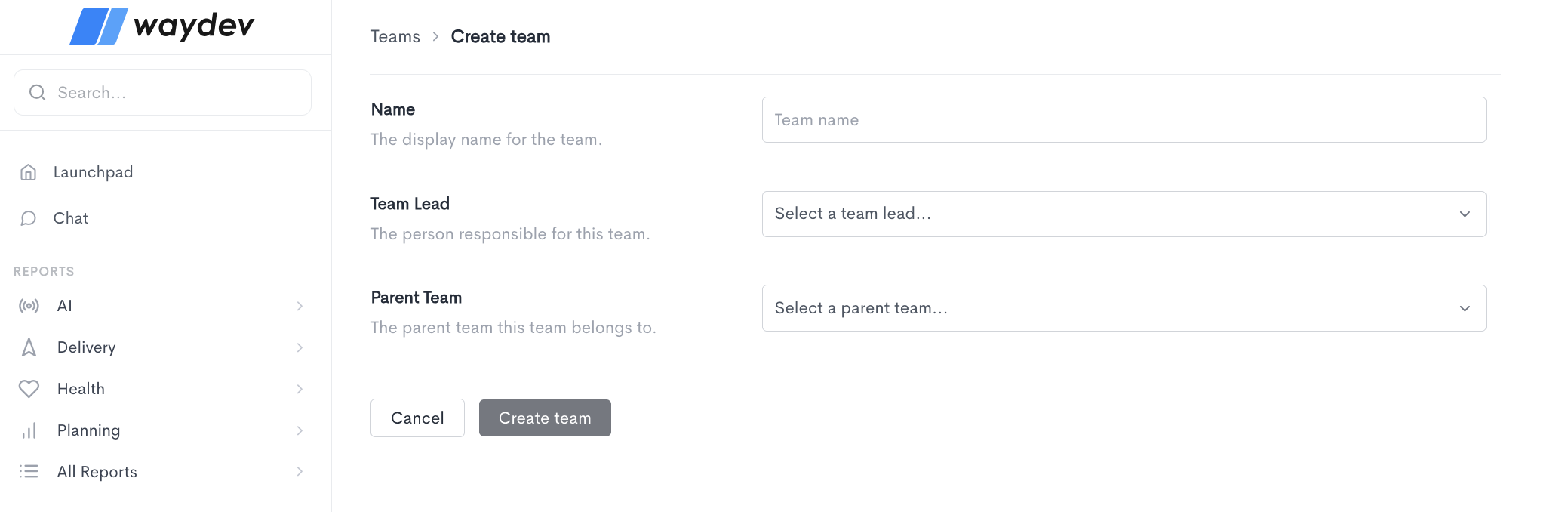
When creating a new team, fill in the following fields:
- Name — The display name for the team.
- Team Lead — Select the person responsible for this team from the dropdown.
- Parent Team — Optionally select a parent team this team belongs to, if it is a sub-team within a larger team structure.
Once all fields are filled in, click Create team to save the team. Click Cancel to discard the changes and return to the Teams list.
Import teams
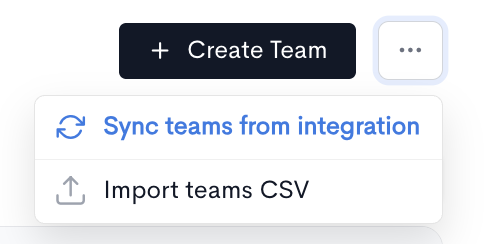
The ··· menu in the Teams page header provides two ways to populate your team structure without creating teams one at a time:
- Sync teams from integration — Build your team structure from an existing integration.
- Import teams CSV — Build your team structure from a spreadsheet.
Sync teams from integration
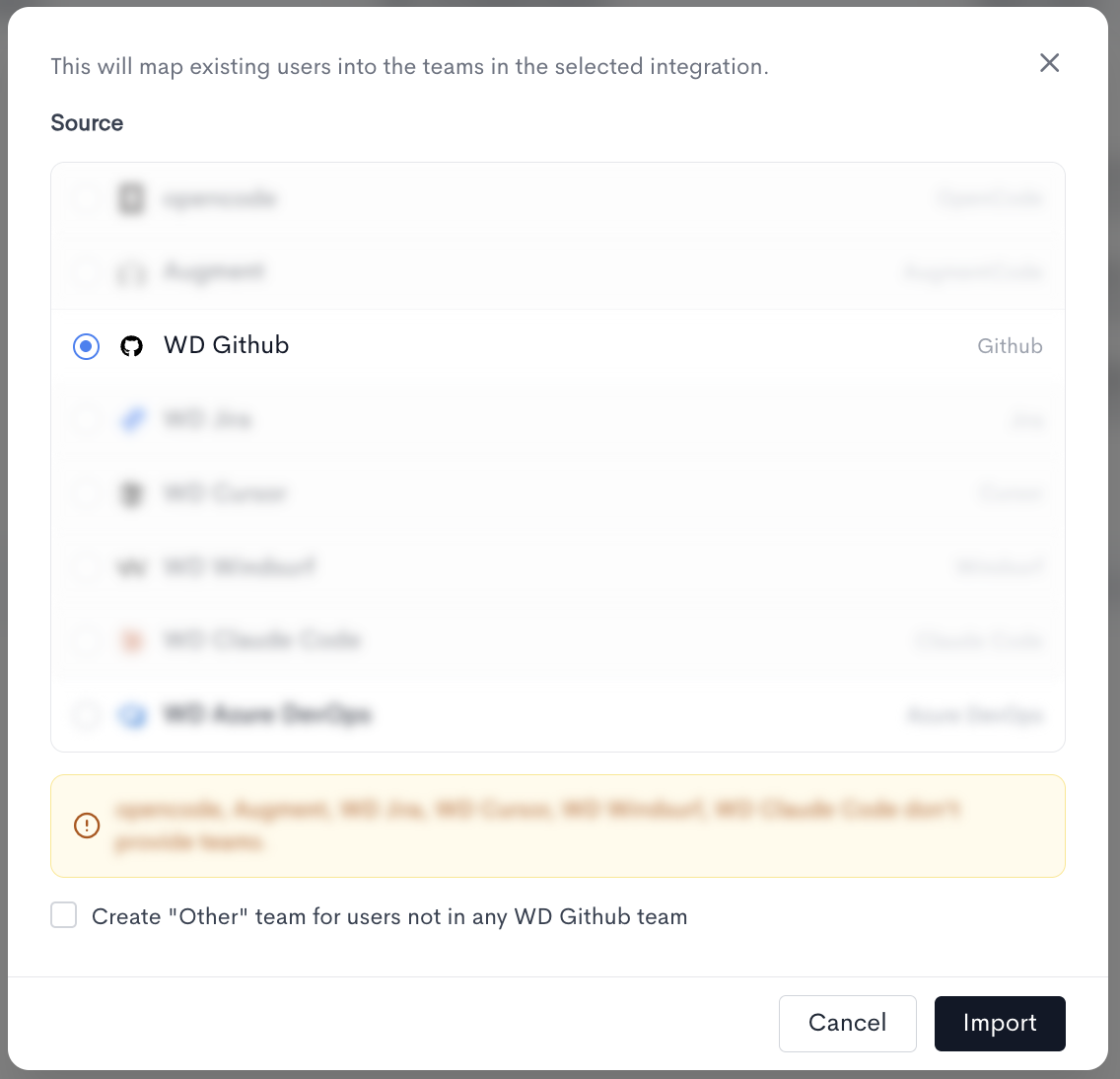
Use this when your team structure already exists in one of your connected tools — a Git provider's groups, or an identity or HR source. Rather than creating teams from scratch, Waydev reads the structure from that integration and maps your existing users into it.
How it works
- Open ··· → Sync teams from integration.
- Choose a source. Only one integration can be synced at a time, so the list is single-select.
- Optionally tick Create "Other" team for users not in any [integration] team. This collects everyone the source doesn't place in a team into a single catch-all team, so nobody is left unassigned.
- Click Import.
Import teams CSV
Use this when your structure lives in a spreadsheet, or when it doesn't match any single integration — for example, a reporting hierarchy that spans several tools.
How it works
- Open ··· → Import teams CSV.
- Drag a .csv file into the upload area, or click Browse Files to pick one. The selected file's name and size are shown, and it can be removed and replaced before importing.
- Click Import Teams.
Updated about 2 months ago