

Set up Contributors
Group-scoped visibility and filtering
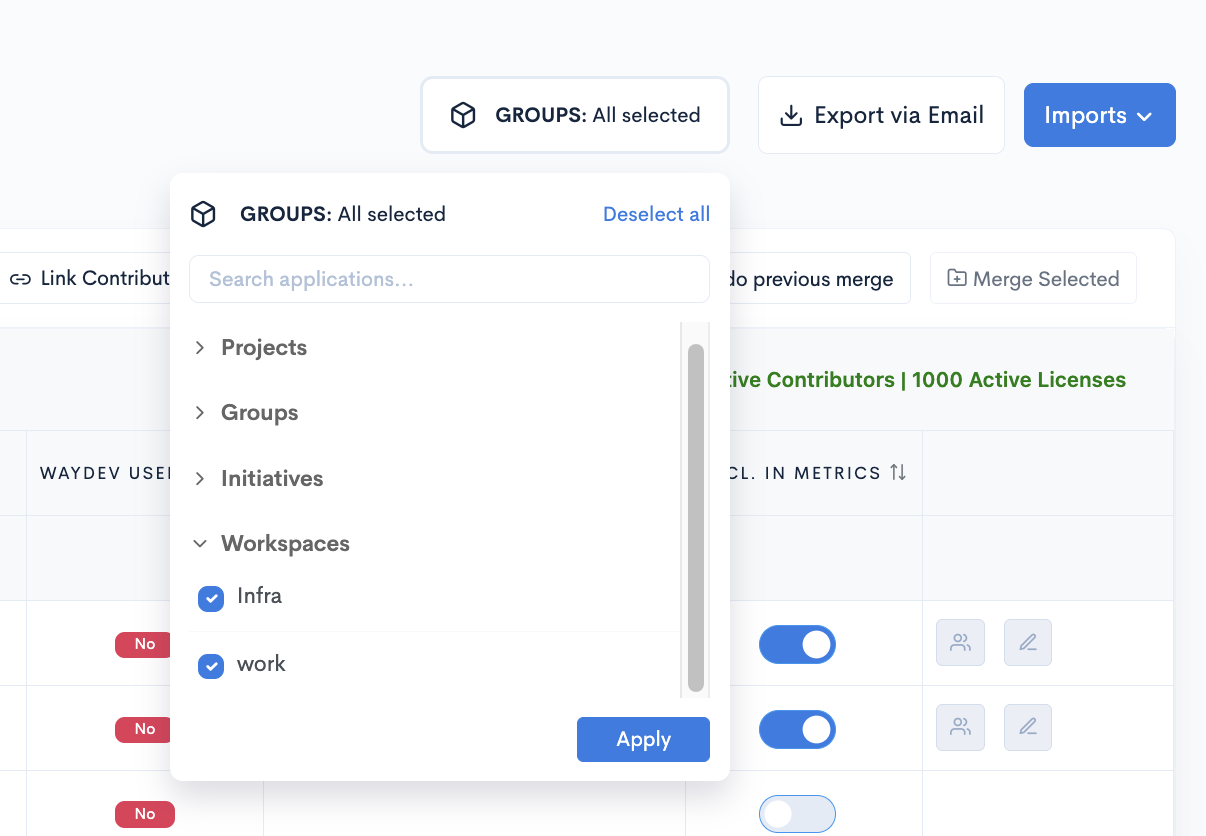
On the Team Management page, teams and contributors are now scoped by Group.
If you revisit the Setup process after having defined Groups (Projects, Initiatives etc) for your organization, note that:
-
Main users and Owners continue to see all teams and contributors.
-
Other users see only the Groups they have been granted access to (in the Operational Users page).
-
In both Contributors view and Teams view, you can filter by one or more Groups you have access to, in order to reduce clutter and manage teams and contributors more effectively.
Add/ Remove contributors from teams
Individual selection
- Step 1: Navigate to Teams Management in the Setup section.
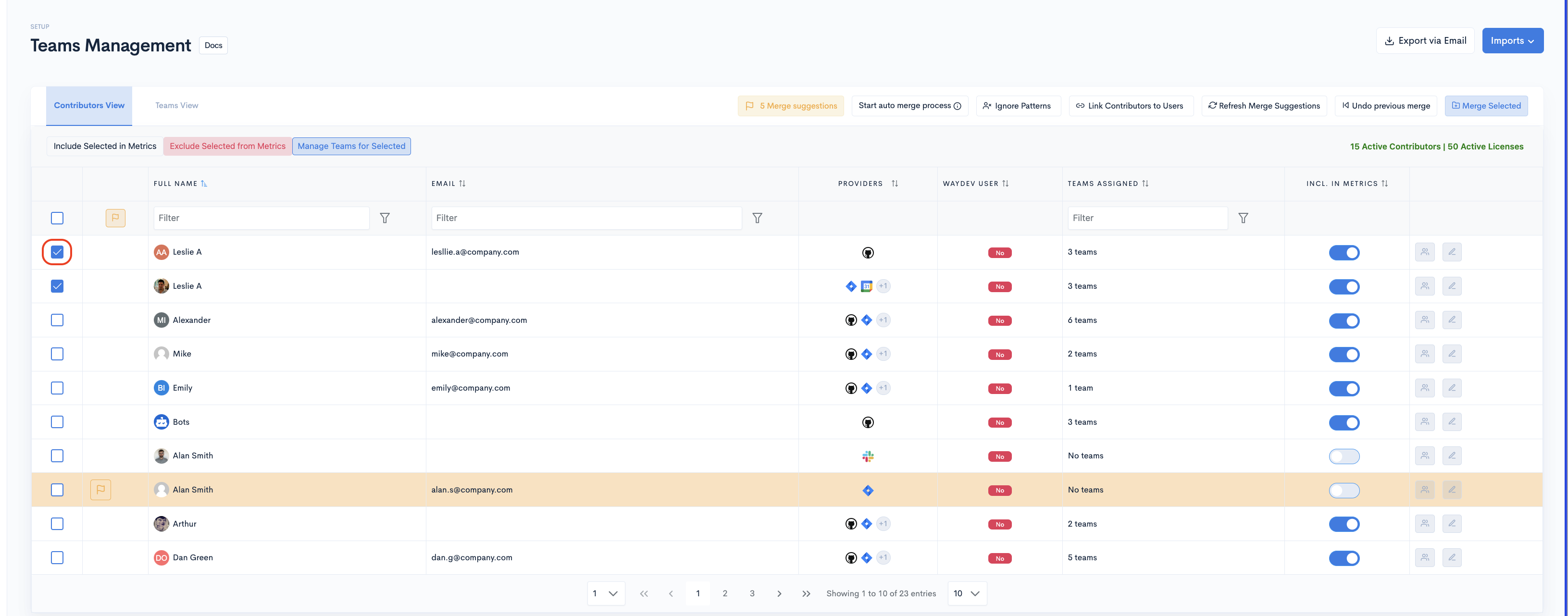
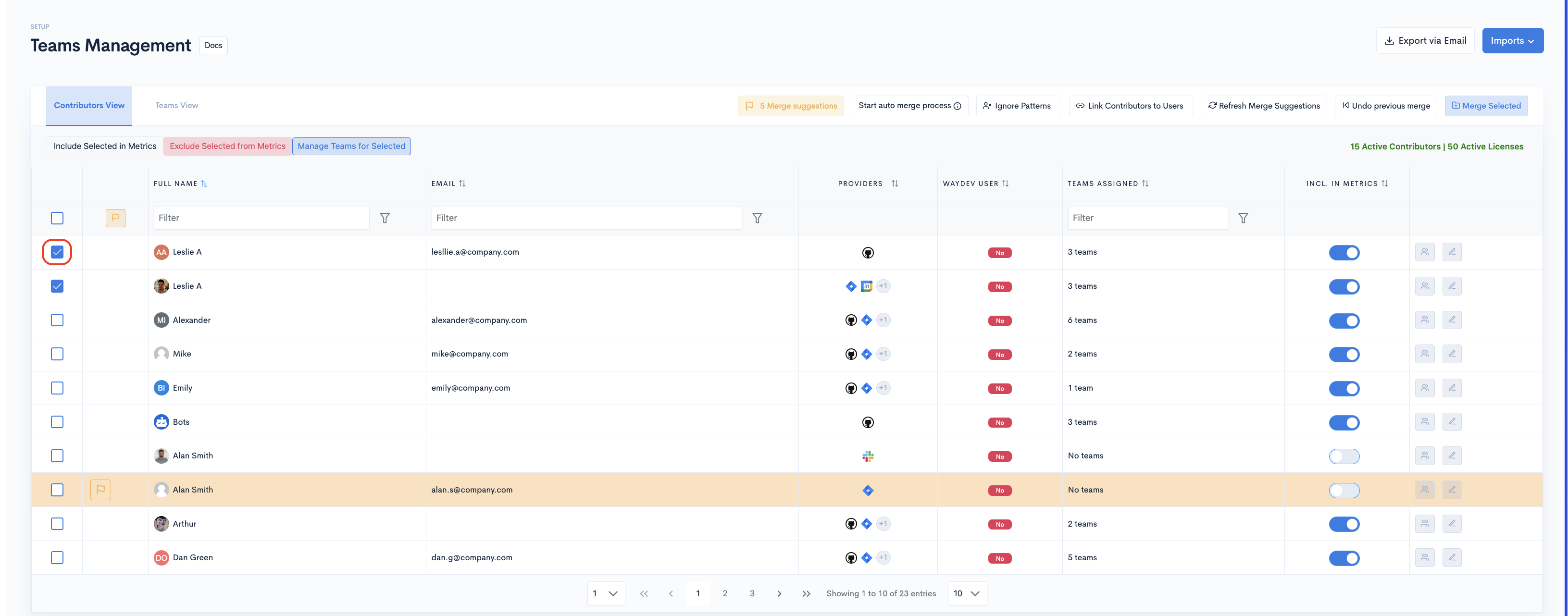
- Step 2: Select the contributor profiles you want to manage teams for, by clicking their corresponding checkboxes.
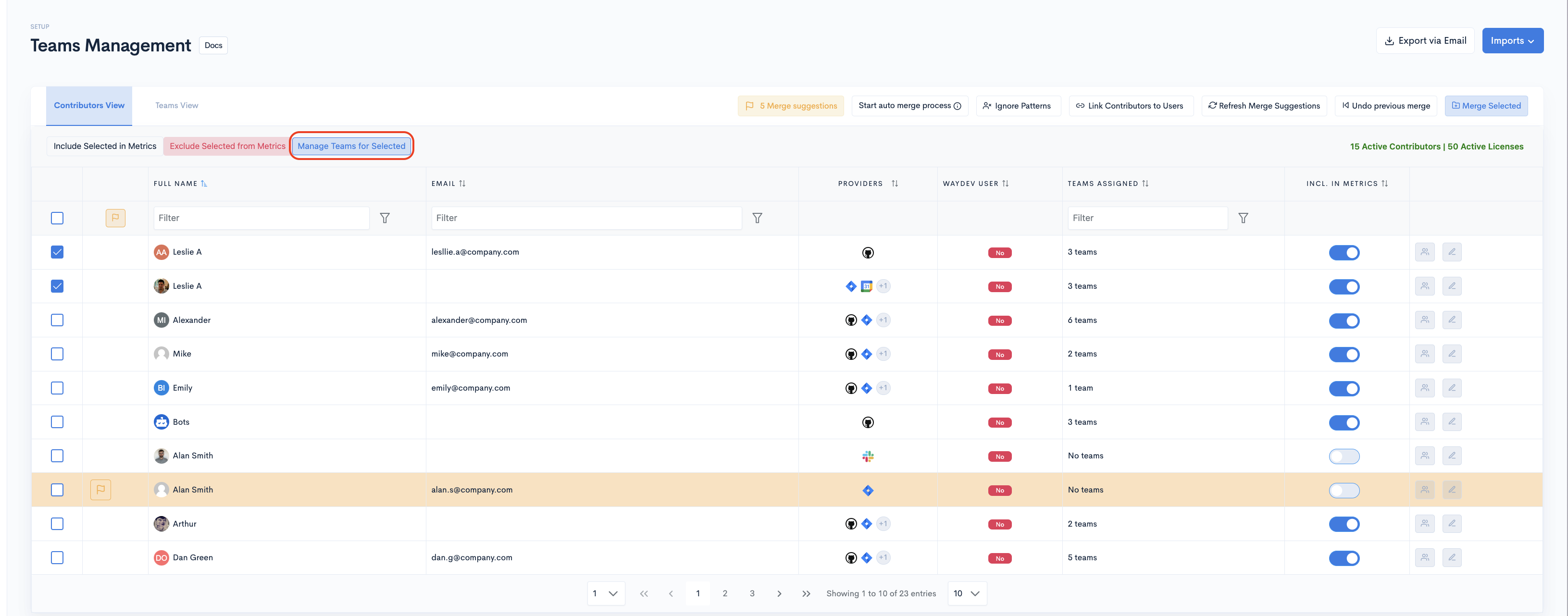
- Step 3: Click Manage Teams for Selected.
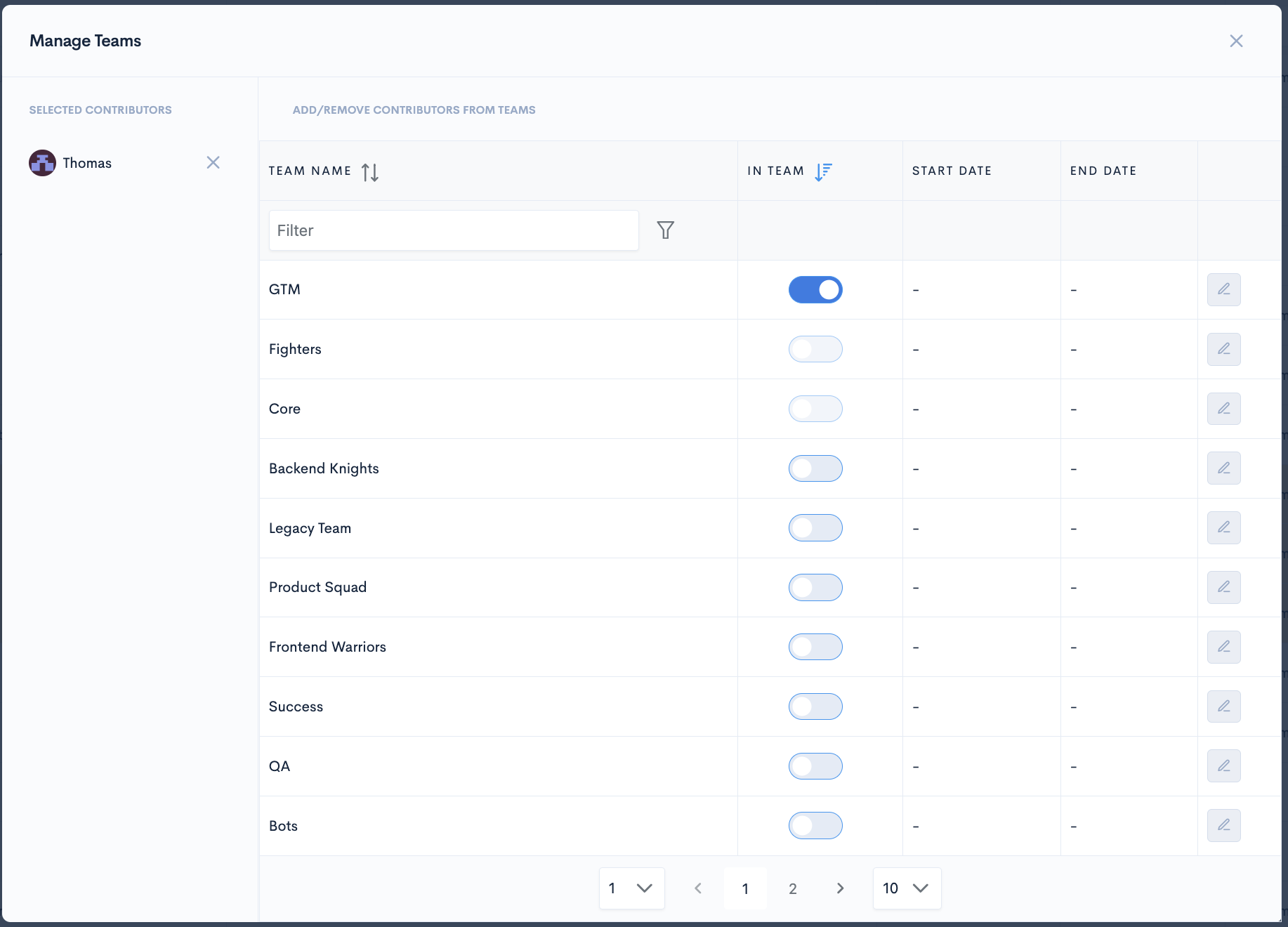
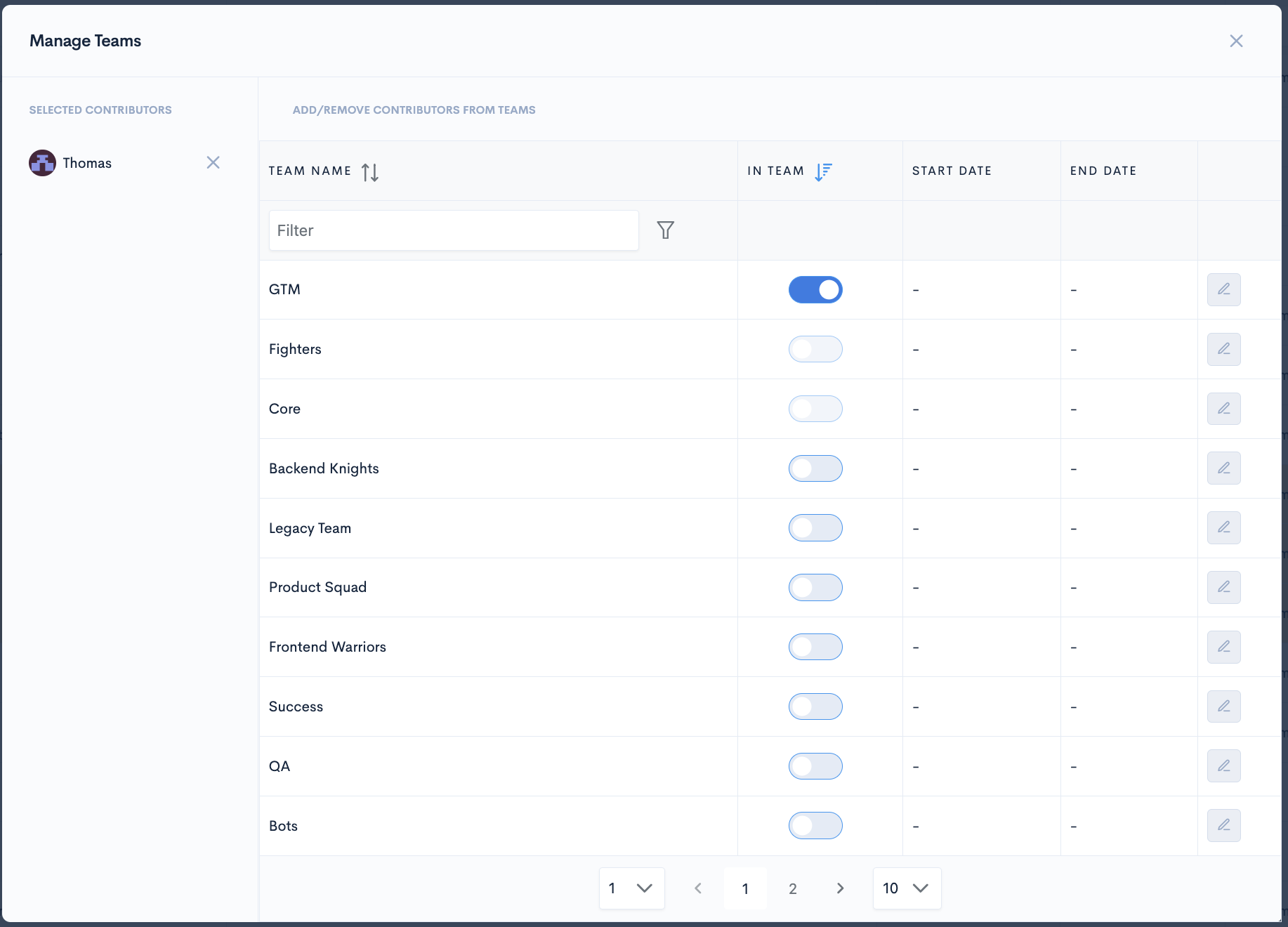
- Step 4: The Manage Teams modal will appear on the screen. You can add/ remove the selected contributors from teams by selecting/ deselecting the corresponding toggle for the teams.
Alternate method
- Step 1: Navigate to Teams Management in the Setup section.
- Step 2: Click the Teams button corresponding to the contributor you want to manage teams for.
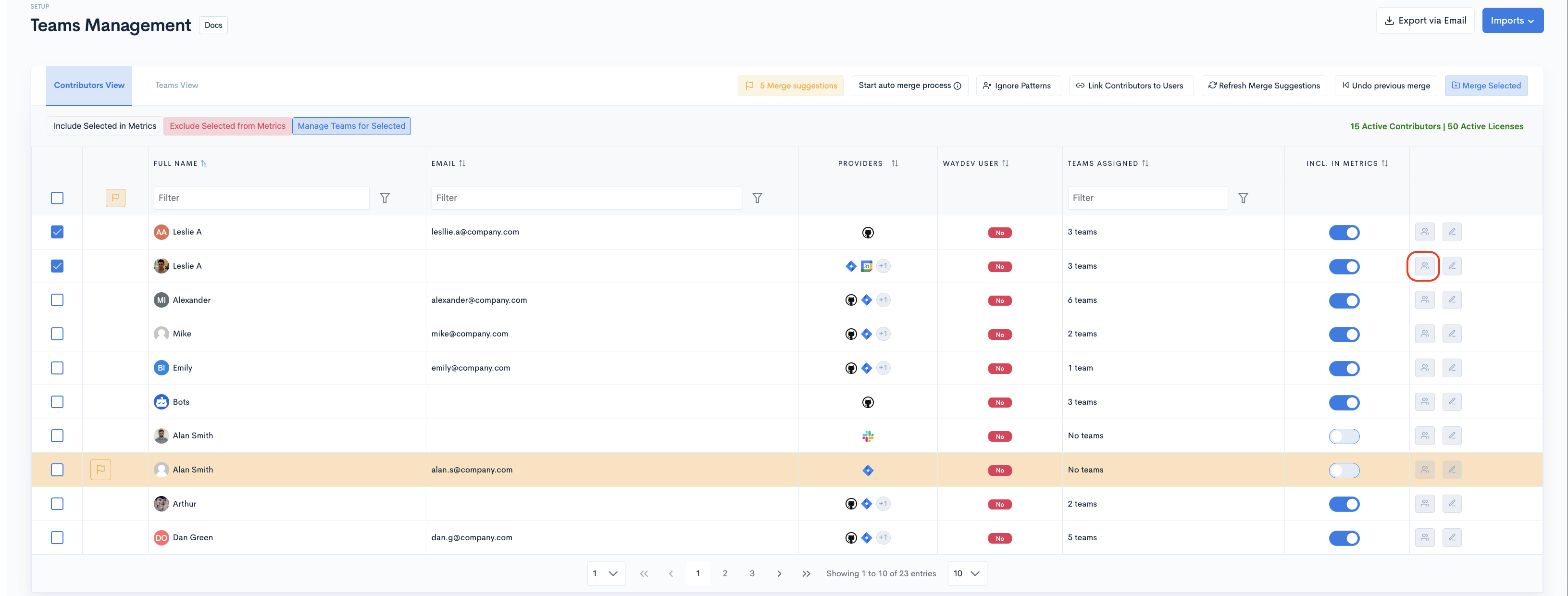
- Step 3: The Manage Teams modal will appear on the screen. Add/ remove the selected contributor from a team by switching on/ off the toggle corresponding to the team.
Include/ Exclude contributor profiles from metrics
When someone is included in metrics, it means their work will show up in the reports. If you exclude a contributor from metrics, you won't see any of their data.
A contributor needs to be included in metrics and in a team to show up in reports
Multiple selection
- Step 1: Select the contributor profiles you want to include/exclude from metrics by clicking on their corresponding checkboxes.
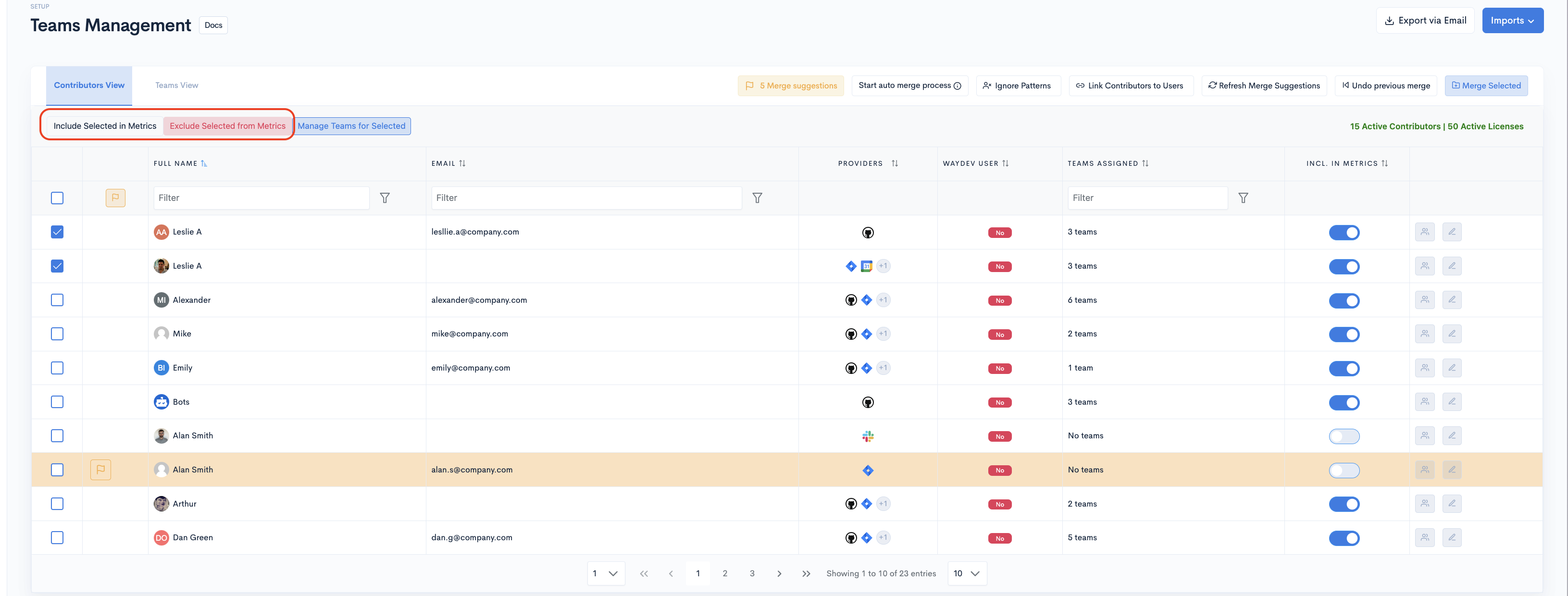
- Step 2: Click Include Selected in Metrics or Exclude Selected from Metrics.
Individual selection
-
Step 1: Navigate to Teams Management in the Setup section.
-
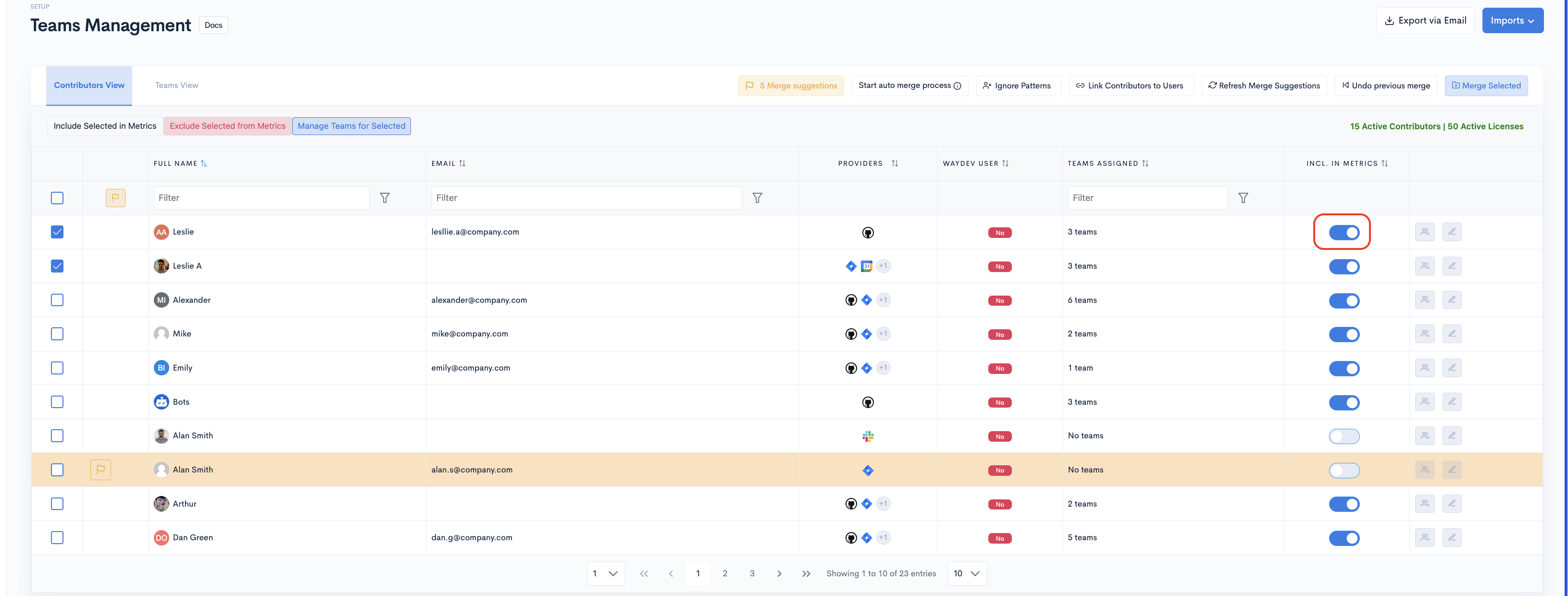
Step 2: Switch the toggle on for contributors you want to include in metrics. Switch the toggle off for contributors you want to exclude from metrics.
Edit contributor profiles
-
Step 1: Navigate to Teams Management in the Setup section.
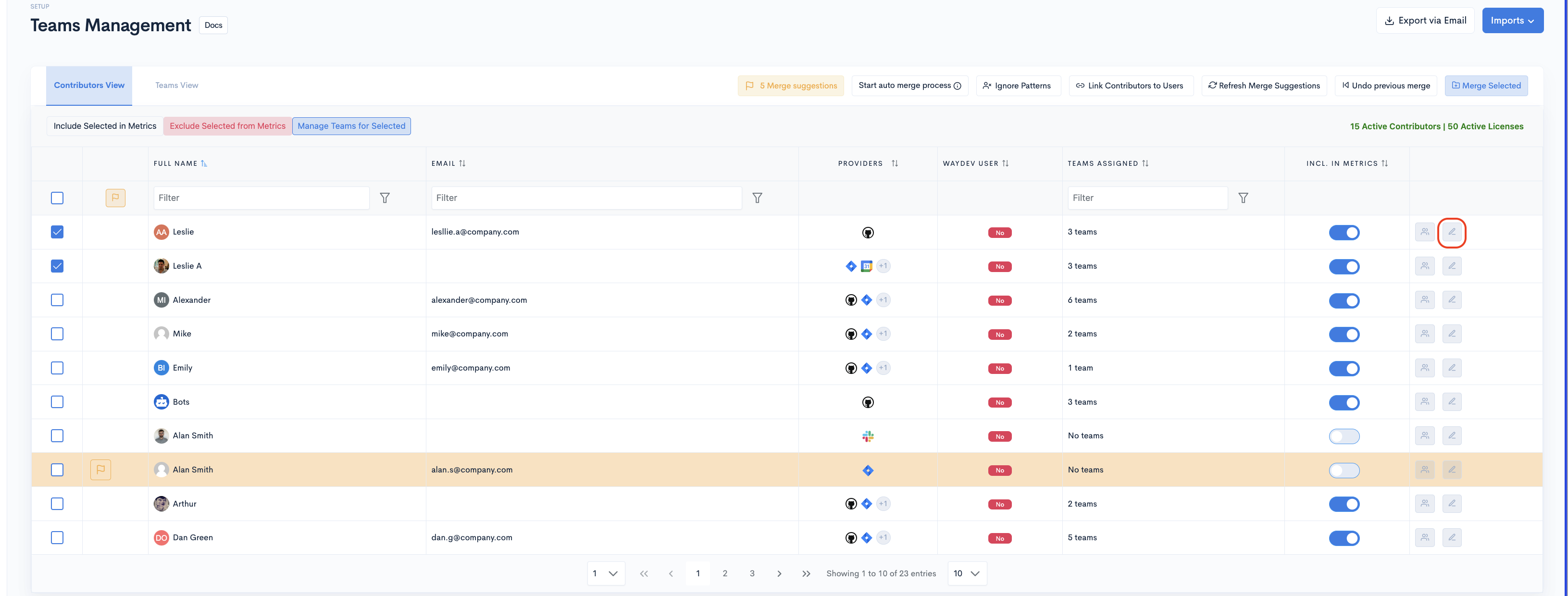
- Step 2: Click the Settings button corresponding to the contributor profile you want to edit.
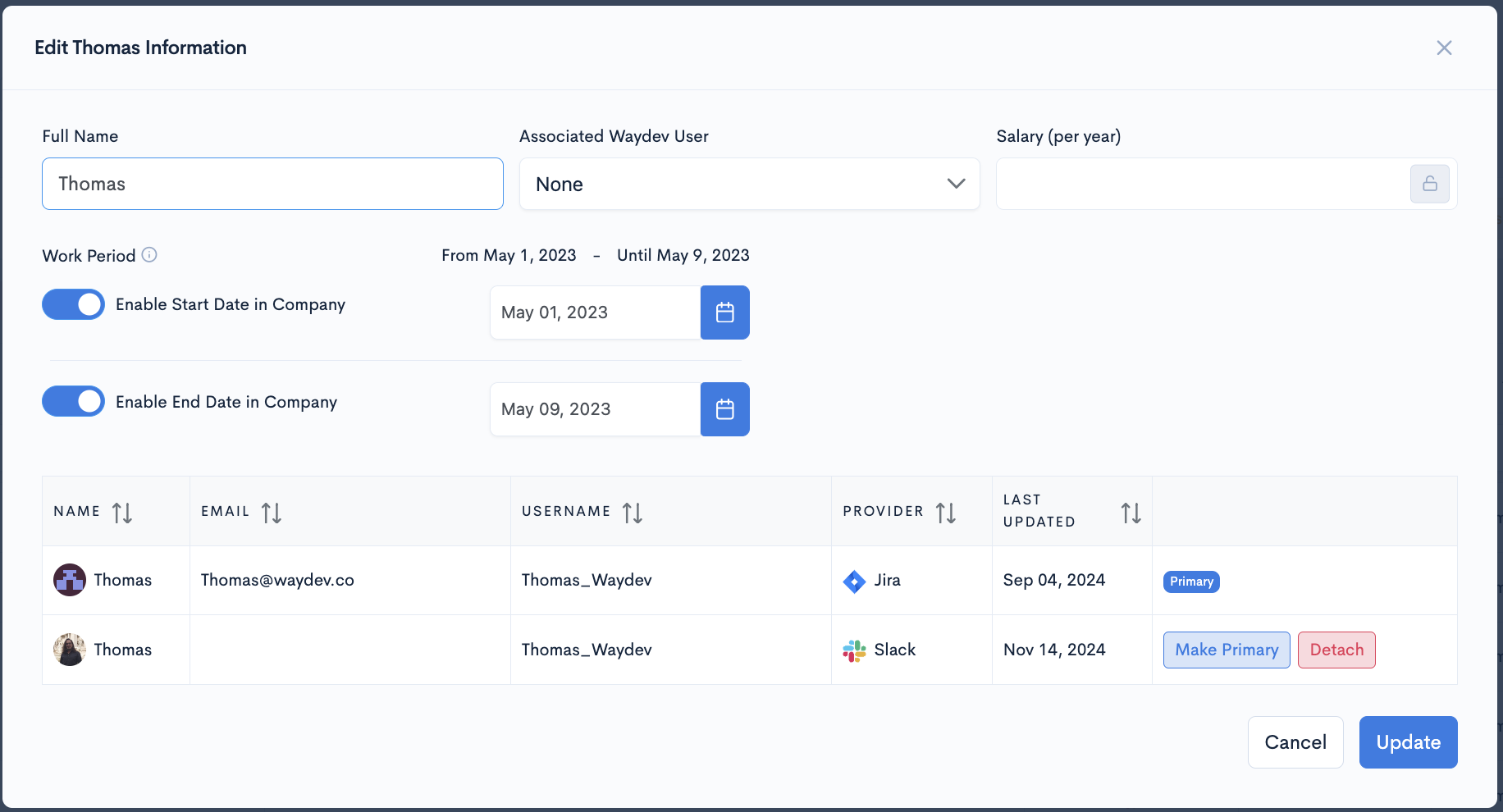
- Step 3 : You can edit profile information in the modal. After editing, click Update .
Updated about 1 month ago