

OLAs
See how delivery is tracking against the operating levels set for your organization, teams, and attributes.
See how delivery is tracking against the operating levels set for your organization, teams, and attributes.
OLAs (operating levels) are the delivery targets you set for a metric, for the entire organization or for a team or attribute. Waydev suggests levels from your recent data. Approving a suggestion adds it to Diagnose → OLAs, where you can see which levels are met, which are not, and how far each one is from target.
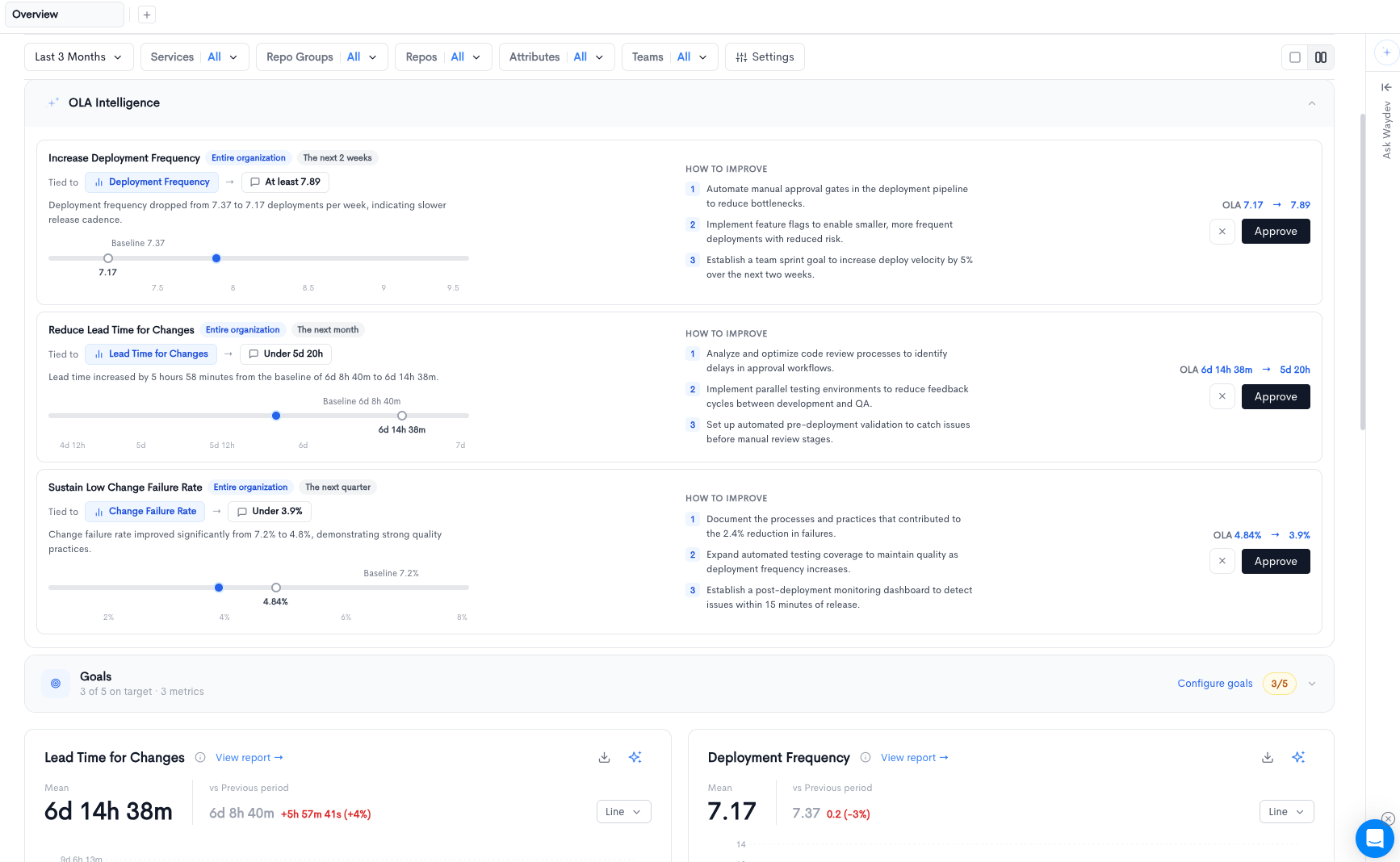
OLA Intelligence
OLA Intelligence appears at the top of a report, above the metric cards. Expand it to review suggested operating levels for the page you are on.
Each suggestion shows:
- Title and scope — What the level is trying to change, and who it applies to (for example, Entire organization).
- Period — The window the suggestion is written for, such as the next two weeks, the next month, or the next quarter.
- Tied to — The metric, and the proposed level in plain language (for example, At least 7.89 or Under 5d 20h).
- Reason — Why the level was suggested, compared with the recent baseline.
- Scale — The baseline, the current value, and a target you can drag before you approve it. The summary on the right updates from the current value to the chosen target.
- How to improve — Numbered actions for reaching the level.
Approve saves the suggestion as an operating level. It then appears on the OLAs page. The × asks for a different suggestion for that metric.
The OLAs page
Open Diagnose → OLAs. The page uses the same period, attribute, and team filters as the rest of the product. With no operating levels yet, the page asks you to approve a suggestion on a report.
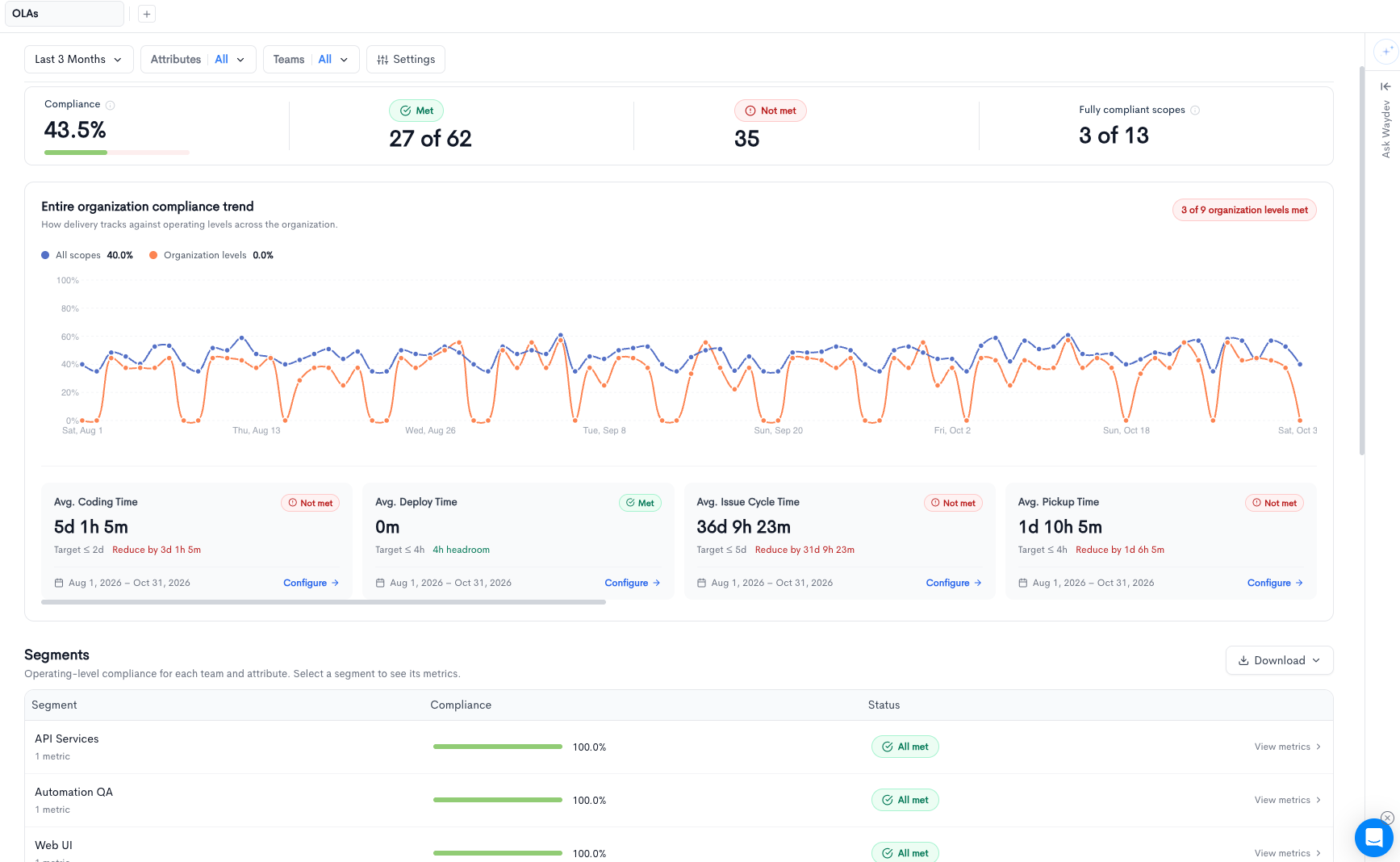
The summary across the top has four figures:
- Compliance — The share of measured operating levels that are met for the selected period.
- Met — How many measured levels are met, out of the total that could be measured.
- Not met — How many measured levels missed their target.
- Fully compliant scopes — How many teams or attributes have every one of their levels met.
Met is a green badge. Not met is a red badge.
Organization compliance
Entire organization compliance trend plots compliance over the selected period.
- All scopes — Compliance across organization, team, and attribute levels.
- Organization levels — Compliance for levels that apply to the entire organization.
The badge at the right of the section states how many organization levels are met (for example, 3 of 9 organization levels met).
Under the chart, each organization level is a card: the metric name, a Met or Not met badge, the current value, the target, and the distance to target (headroom when it is met, or how much to reduce or increase when it is not). Configure opens that level.
Segments
The Segments table lists each team and attribute that has operating levels. Rows are ordered with the highest compliance first.
- Segment — The team or attribute name, and how many metrics it has.
- Compliance — A bar and the percentage of that segment's measured levels that are met. No data appears when none of its levels could be measured.
- Status — All met when every measured level is met, or N not met when some are missed.
- View metrics — Opens that segment. Selecting the row does the same.
A segment's metrics
The segment dialog names the team or attribute and how many of its metrics meet their operating level.
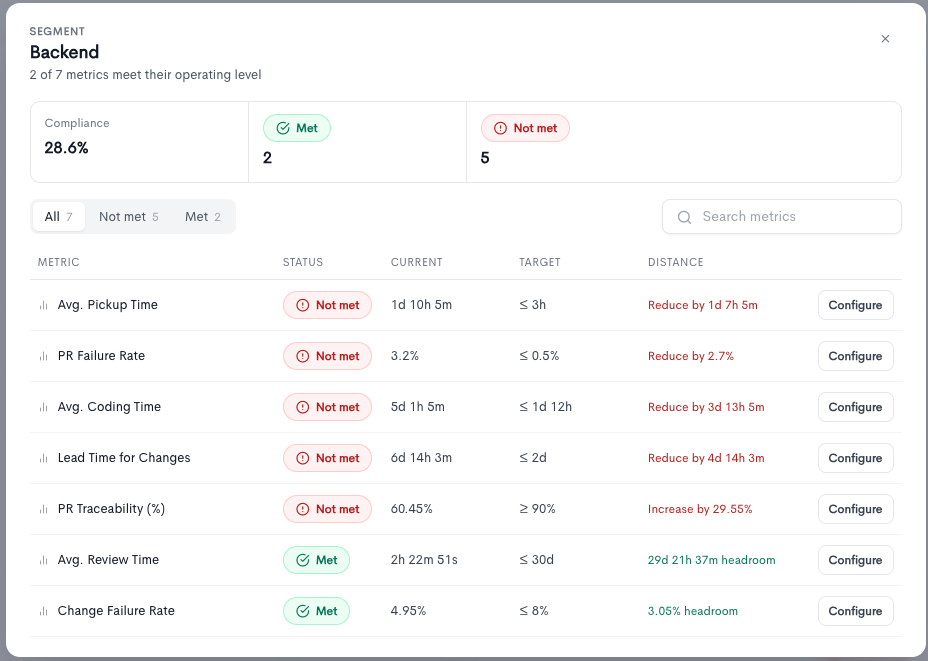
The summary shows Compliance, Met, and Not met. Filter the list with All, Not met, or Met, or search by metric name.
Each row includes:
- Metric — The metric the level is set on.
- Status — Met or Not met.
- Current — The value for the selected period.
- Target — The operating level, including the direction (at least or at most).
- Distance — Headroom when the level is met, or how far the current value has to move.
- Configure — Opens that level for this segment only.
Configuring an operating level
Configure opens the operating level for one scope. The footer states what the change applies to, such as Applies to Backend only or the entire organization.
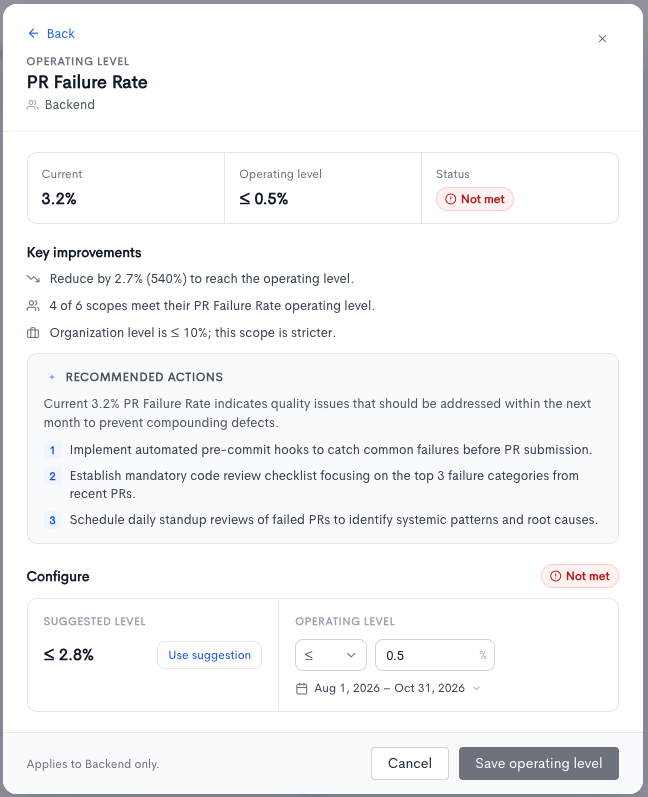
The top of the panel shows:
- Current — The measured value for the selected period.
- Operating level — The target that is saved today.
- Status — Met or Not met.
Key improvements states the gap to the level, how this scope compares with the others that share the metric, and whether this scope is stricter or looser than the organization level.
Recommended actions are suggested steps for this metric and period.
Under Configure:
- Suggested level — A proposed target. Use suggestion copies it into the operating level fields.
- Operating level — The direction and the numeric target, in the metric's unit.
- Period — The dates this level is evaluated over.
Save operating level stores the change for this scope. Cancel, or Back, leaves the saved level unchanged.
Status updates
At the bottom of the OLAs page, Status updates can send a recurring note about operating levels to Slack, Microsoft Teams, or email. Turn a channel on, then set:
- Send when — Summary is selected by default and sends the full picture: which levels are met, which are not, and how far each is from target. Off target sends only the levels that are not met.
- Cadence — Weekly or Monthly.
- Delivery time — The hour the message is sent.
- Destination — The Slack channel, Teams destination, or email recipients.
A channel you have already saved keeps the send mode you chose.
Updated about 1 hour ago