

Jira Story Point Fields Mapping
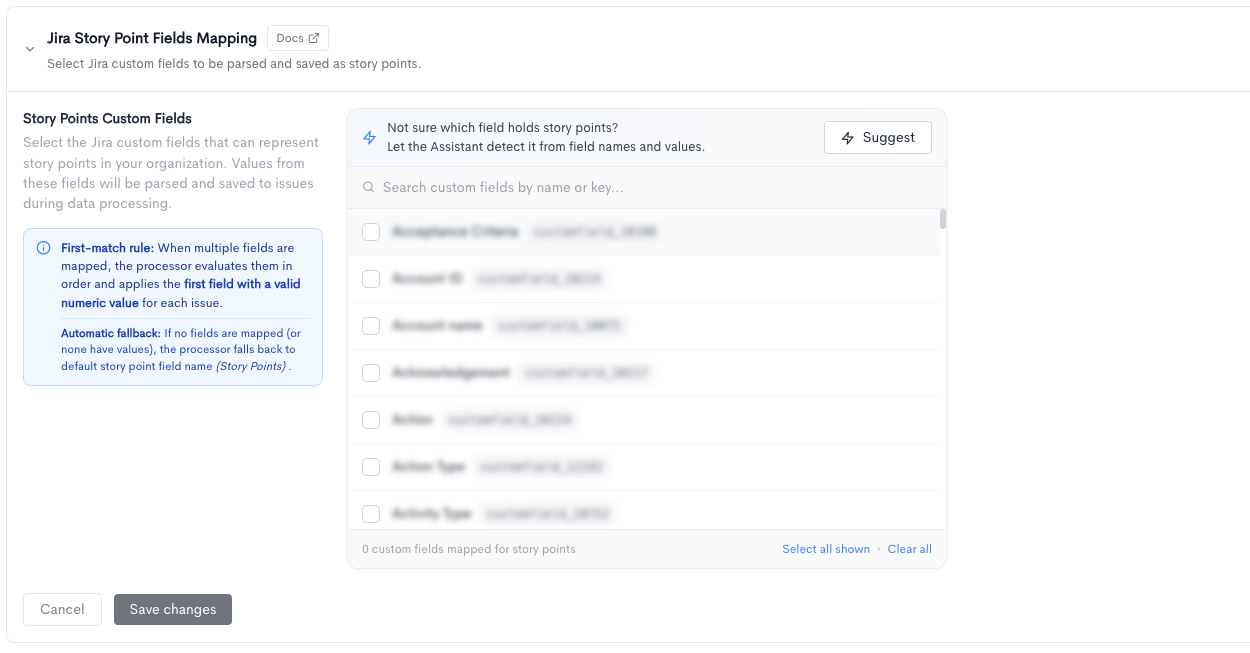
Jira Story Point Fields Mapping lets you choose which Jira custom fields Waydev should treat as story points. During Jira sync, values from those fields are parsed and saved on issues, so reports that use story points stay accurate even when your organization does not use Jira's default Story Points field.
Note: You need a connected Jira integration and at least one completed sync so Waydev can discover custom fields. If no Jira integration is connected, or no custom fields have been synced yet, the section shows an empty state instead of the field list.
Mapping custom fields
- Open Settings → Aggregation → Issues and expand Jira Story Point Fields Mapping.
- If you have multiple Jira integrations, pick the one you want to configure.
- Search the list by field name or key if needed.
- Check every custom field that should count as story points. Use Select all shown to map the current search results, or Clear all to unmap every field for that integration.
- Click Save changes. Cancel restores the last saved selection.
If you are not sure which custom field holds story points, select Suggest.
- Waydev Agent looks at the field names and a sample of recent values for that Jira integration, then marks the fields that look like story points, with a short reason and a confidence.
- Apply suggestions checks those fields in the list. Dismiss clears the marks. The choice is kept only after you click Save changes.
Notes:
- In demo mode the list is read-only.
- Mapping is saved per Jira integration. Changing one integration does not change the others.
- New values apply on the next Jira data processing run, not to issues already stored until they are synced again.
When this matters
Use this mapping when:
- Story points live in a custom field that is not named Story Points (for example Story point estimate, or a company-specific field).
- Different Jira projects use different fields, and you need Waydev to check more than one.
- Velocity, sprint planned points, and other issue story-point metrics should follow the same field your teams actually estimate in Jira.
Updated 10 days ago