

AI Providers & BYOK
Choose which AI provider powers Waydev's AI features — AI Insights, AI Studio chat, and metric predictions. You can use Waydev's own infrastructure or bring your own Anthropic or OpenAI API key (BYOK).
Active AI Provider
Pick one of four options at the top of the page:
| Provider | What it does |
|---|---|
| Waydev 15B | Waydev's own SDLC model, fine-tuned for engineering analytics. No API key or setup is required. This is the default. |
| Anthropic Managed | Claude through Waydev's Anthropic account. No API key is required. |
| BYOK Anthropic | Your own Anthropic API key, for Claude models and custom endpoints. |
| BYOK OpenAI | Your own OpenAI API key, for GPT models and compatible endpoints. |
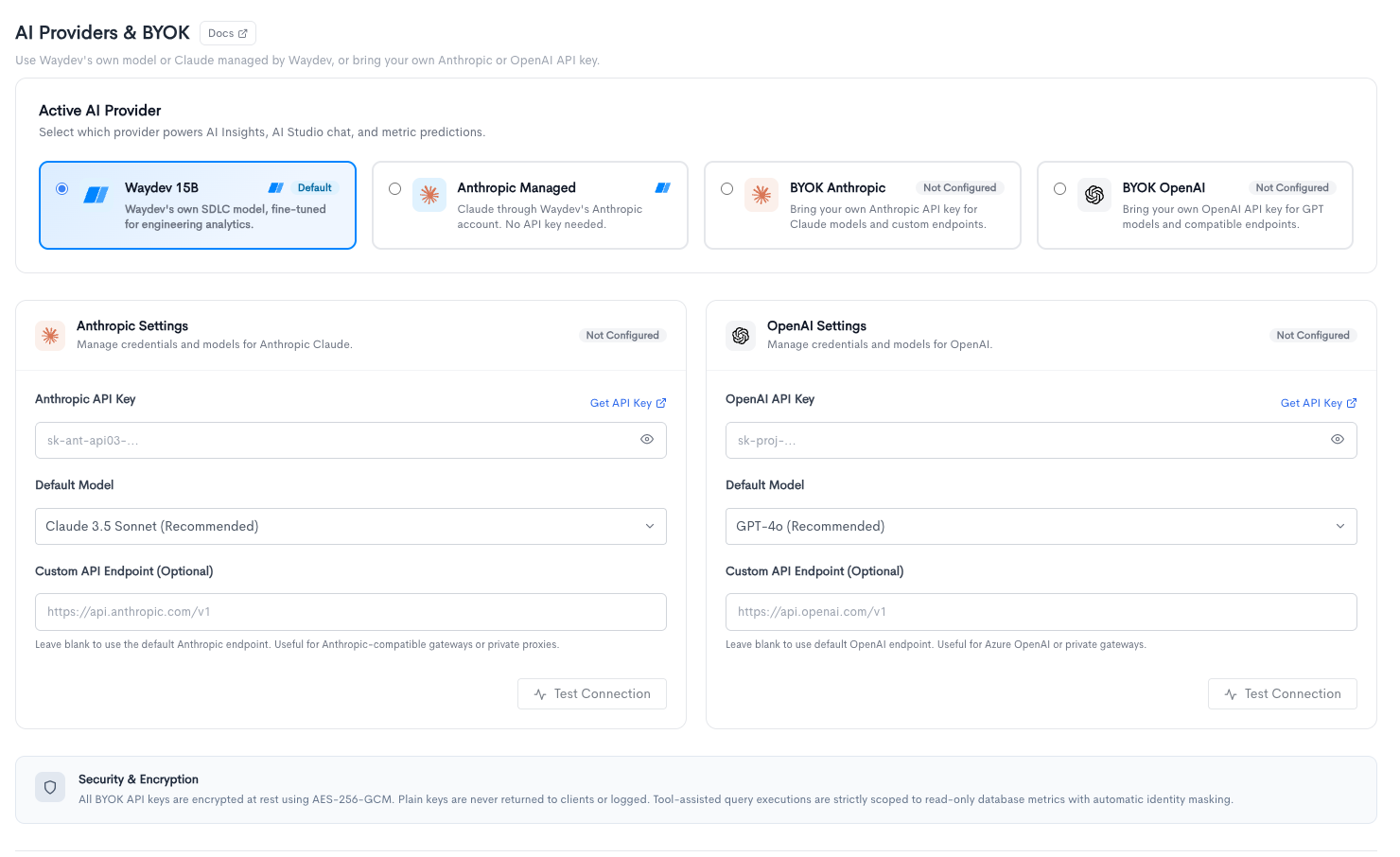
Waydev 15B and Anthropic Managed are run by Waydev. BYOK Anthropic and BYOK OpenAI use a key from your own account.
Anthropic Settings
These settings apply when BYOK Anthropic is the active provider.
- Anthropic API Key — Paste a key from the Anthropic console. Get API Key opens that page. After a key is saved, it is shown masked. Use Change Key to replace it or Remove to delete it.
- Default Model — The Claude model used for Waydev's AI features. Claude 3.5 Sonnet (Recommended) is the default. Other options are Claude 3.7 Sonnet, Claude 3.5 Sonnet (Legacy), Claude 3.5 Haiku (Fast), and Claude 3 Opus.
- Custom API Endpoint (Optional) — Leave this blank to use https://api.anthropic.com/v1. Set it when you route Claude through an Anthropic-compatible gateway or a private proxy.
Click Test Connection to check the key before you save. The button stays disabled until a key is entered.
OpenAI Settings
These settings apply when BYOK OpenAI is the active provider.
- OpenAI API Key — Paste a key from the OpenAI platform. Get API Key opens that page. A saved key is shown masked, with Change Key and Remove.
- Default Model — The GPT model used for Waydev's AI features. GPT-4o (Recommended) is the default. Other options are GPT-4o Mini (Fast), GPT-4 Turbo, o1, and o3-mini.
- Custom API Endpoint (Optional) — Leave this blank to use https://api.openai.com/v1. Set it for Azure OpenAI or a private gateway.
Click Test Connection to check the key before you save. The button stays disabled until a key is entered.
Connection status
BYOK Anthropic and BYOK OpenAI show a status on the provider card and on the settings panel:
- Not Configured — No API key is saved.
- Configured — A key is saved and has not been tested yet.
- Connected — A connection test succeeded.
- Invalid Key — The saved key no longer works.
Updated 7 days ago